Prompt Rodin for image-to-3D
Last updated: October 30, 2026
Rodin turns one approved render into a textured mesh that keeps its shape, materials and painted detail. Pick it when the design is signed off as an image and the job is a game-ready model of it: a prop, a weapon, a set piece, a character to rig.
Let the agent write it
You don't have to set any of this up yourself. The Layer agent knows how to brief each model it runs, from the same guidance this page is built on. Attach the render in chat, name the model and say what the mesh is for, for example: Turn this chest into a 3D model with Rodin Gen-2.5: a static prop for a mobile game, about 20,000 faces, PBR materials. The agent picks the settings, shows you its plan, and runs it when you approve. Use the rest of this guide when you want to set the run up yourself, and see Write a brief for the agent for how to brief it.
When to use it
Use Rodin when you already have the image and need the object in 3D: props, weapons, furniture and other hard-surface pieces, stylised or realistic, and human-like characters you plan to rig. It reads the silhouette, the materials and the painted detail from the image, and builds a plausible back for an object it only sees from the front.
It works from a single image on Layer, so it cannot see what the image hides. An object whose back or underside matters and cannot be guessed from the front needs another view of its own, or another model from the model picker on the same image. To build a mesh from a description alone, see Choose a model for the 3D models that take text.
Versions on Layer
Rodin Gen-2.5
The version this guide's examples were made with. A Quality setting picks how much structure and detail it resolves, and the face limit goes up to 2,000,000 on its higher tiers.
Rodin Gen-2
The previous generation, with the same inputs and controls apart from Quality, and a face limit up to 1,000,000. Use it to match assets you already built with it.
How to write the prompt
For image-to-3D the image is the brief. Leave the prompt empty, or keep it to the object's name and the shape you want:
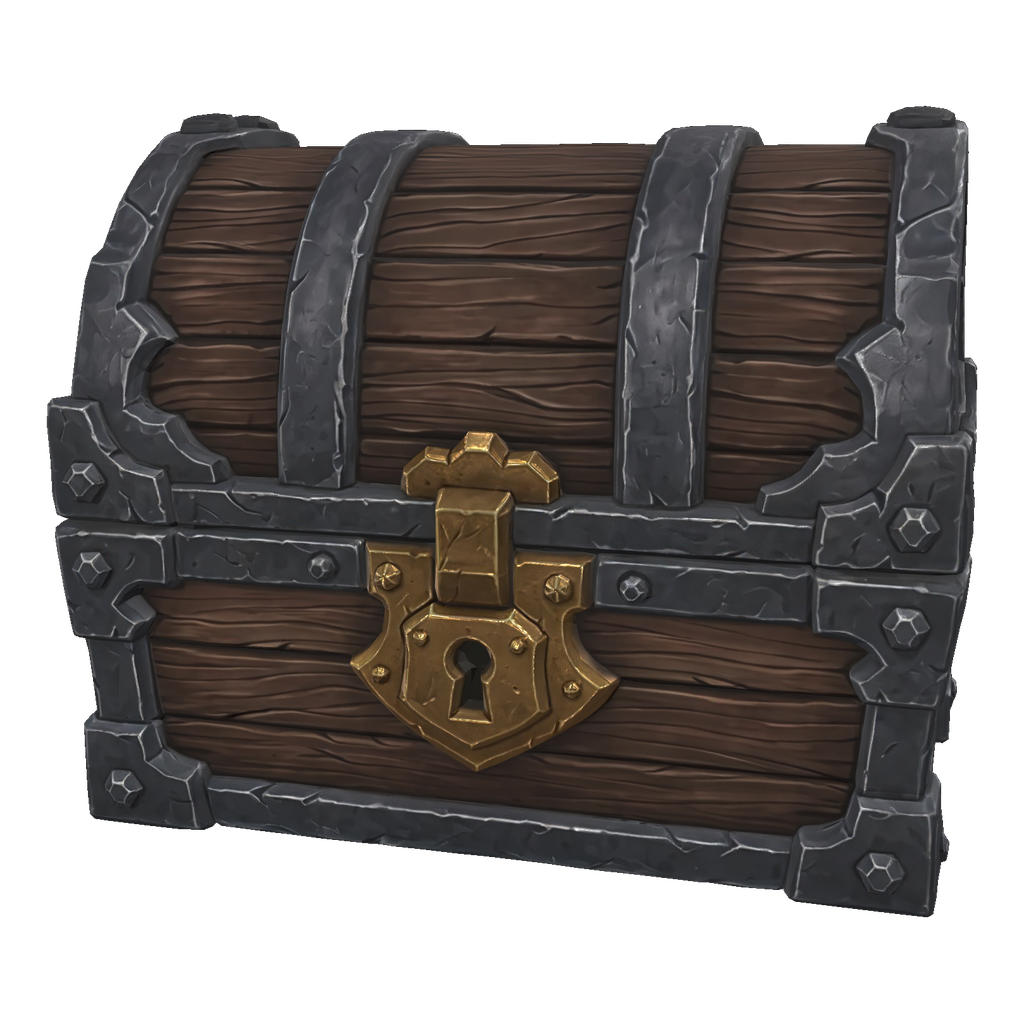
Stylised fantasy treasure chest game prop: dark oak planks, wrought-iron bands and corner brackets, a gold lock plate on the front, closed domed lid. Symmetric, sharp edges, one solid closed mesh.Rodin builds the geometry and the textures from the image, and Hyper3D, who make Rodin, recommend no prompt at all for image-to-3D. When you do write one, use it for what the image cannot say: that the object is symmetric, that edges are sharp, that it is one closed piece. That prompt is the one in the clip above. Most of the result is decided by the image you feed it and the settings below.
What works
A clean image
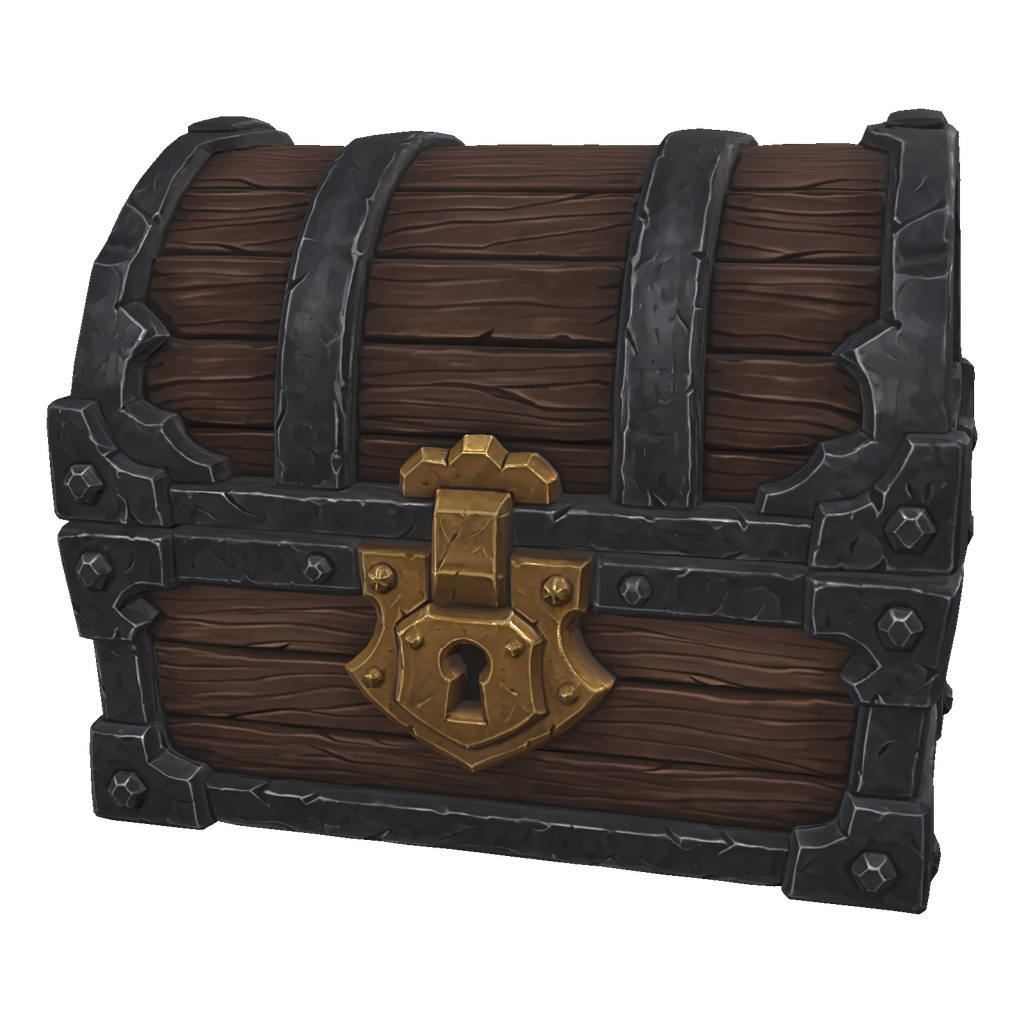
Give Rodin one object, whole and centred in the frame, evenly lit, on a plain background with nothing else in it, at 1024 px or more. A render made for the job beats key art: generate a front view on a plain grey background with soft, even light, and the model has nothing to misread. The chest in this guide came from a single image prompt that asked for exactly that.
A front view for a symmetric prop
Rodin builds the sides and back from what it sees. From a front view that also shows the top of the lid, our chest came back closed and whole: a domed lid, iron bands running over the top, matching corner brackets and a planked back that fits the front. Show a little of the top or side in the render so the depth is not a guess.
PBR materials for a lit scene
Turn on PBR materials when the mesh goes into an engine with lights. You get a colour map, a metal and roughness map and a normal map, so the iron catches highlights and the wood stays matte. We ran the same image and seed with it off: the mesh came back with a single colour texture that has the lighting painted in and does not react to scene lights, so it looked flatter and the iron paler. Leave it off only for an unlit or toon look.
A face limit for the platform
Set Face limit to the budget the asset has before you run. Rodin lands close to it: three runs at 20,000 came back between 19,130 and 19,994 triangles, with the bands, studs and lock intact. The default is far above what a game prop needs.
Quads for rigging, triangles for static props
Turn on Quads for a mesh you will sculpt, rig or deform: four-sided faces are cleaner to edit, between 1,000 and 200,000 of them. Leave it off for a static prop that goes straight into an engine.
T-pose for characters
For a human-like character you will rig, set Pose to T-pose. On Default, Rodin rebuilds the pose in the image as it is.
Iterate cheap, then commit
Find the shape at a low face count, then raise the count and the quality for the asset you keep. Fix the Seed when you compare one setting against another, so the setting is the only thing that changes.
What to avoid
Describing the art in the prompt
Restating what the image shows does not change the mesh. In our test, the chest prompt above and an empty prompt gave near-identical meshes from the same image and seed. Spend the effort on the image instead.
Fixing the image with words
Rodin has no negative prompt, and the prompt cannot remove what the image contains. Crop out a cluttered background, a second object or a hard cast shadow before you run, or generate a cleaner render.
Dramatic key art as the source
Strong shadows, rim light and atmosphere are read as part of the object. Use a plain, evenly lit view of the object, and keep the moody frame for marketing.
Settings that matter
Source image is the image the mesh is built from; Rodin on Layer takes one. Quality (Rodin Gen-2.5) runs from Minimal to Extra High: Low for clean assets and small hard-surface props, Medium for balanced structure and detail, High for richer structure and smoother surfaces, Extra High for the finest detail. Face limit caps the face count. Quads switches the mesh from triangles to four-sided faces. PBR materials adds the maps an engine's lights need. Under the advanced settings, Pose builds a character in a T-pose, and Seed repeats a result.
Prompts to start from
Prop from a clean render, no prompt
Leave the prompt empty. Attach the render, turn on PBR materials and set Face limit for the platform.
Result |
|---|
 |
Prop with shape guidance
Stylised fantasy treasure chest game prop: dark oak planks, wrought-iron bands and corner brackets, a gold lock plate on the front, closed domed lid. Symmetric, sharp edges, one solid closed mesh.Result |
|---|
 |
Use it in Layer
Add the approved render to a session's board.
Click View on the image, then Turn into 3D model. The 3D tool opens in the side panel with the image as its Source image.
Click the model name at the top of the panel and choose Rodin Gen-2.5. The source image stays in place.
Leave the prompt empty, or write the object's name and the shape you want: symmetric, sharp edges, one closed mesh.
Turn on PBR materials, and set Face limit to the asset's budget.
Click Create 3D model. The cost shows on the button before you click.
When the mesh lands on the board, click View to open it in the viewer and turn it around. Check the back and the underside, then change one setting at a time and run it again.
Learn more
Rodin Gen-2.5 parameters (Layer API docs): every setting the model accepts.
Rodin Gen-2.5 API specification (Hyper3D): what each quality tier is for, why the prompt is optional for image-to-3D, triangles against quads, face-count ranges, and what PBR and Shaded materials contain.
Rodin Gen-2 API specification (Hyper3D): the same controls on Gen-2, with its narrower face-count range and its own polycount presets.
rodin3d-skills (Hyper3D): best practices for the input image (resolution, lighting, an uncluttered background) and polycount presets by use.
Hyper3D Rodin v2 image to 3D (WaveSpeed): when to pick quads or triangles, PBR or baked materials, and iterating at a low polycount.