Prompt GPT Image for text-to-image
Last updated: October 30, 2026
GPT Image follows long, specific briefs and renders lettering you can read: titles, prices, button labels and interface text. Pick it when the image has words on it, or when a layout has to come out the way you described it: store banners, shop screens, title screens, key art with a logo.
Try GPT Image 2.5 Sunburst in Layer
Let the agent write it
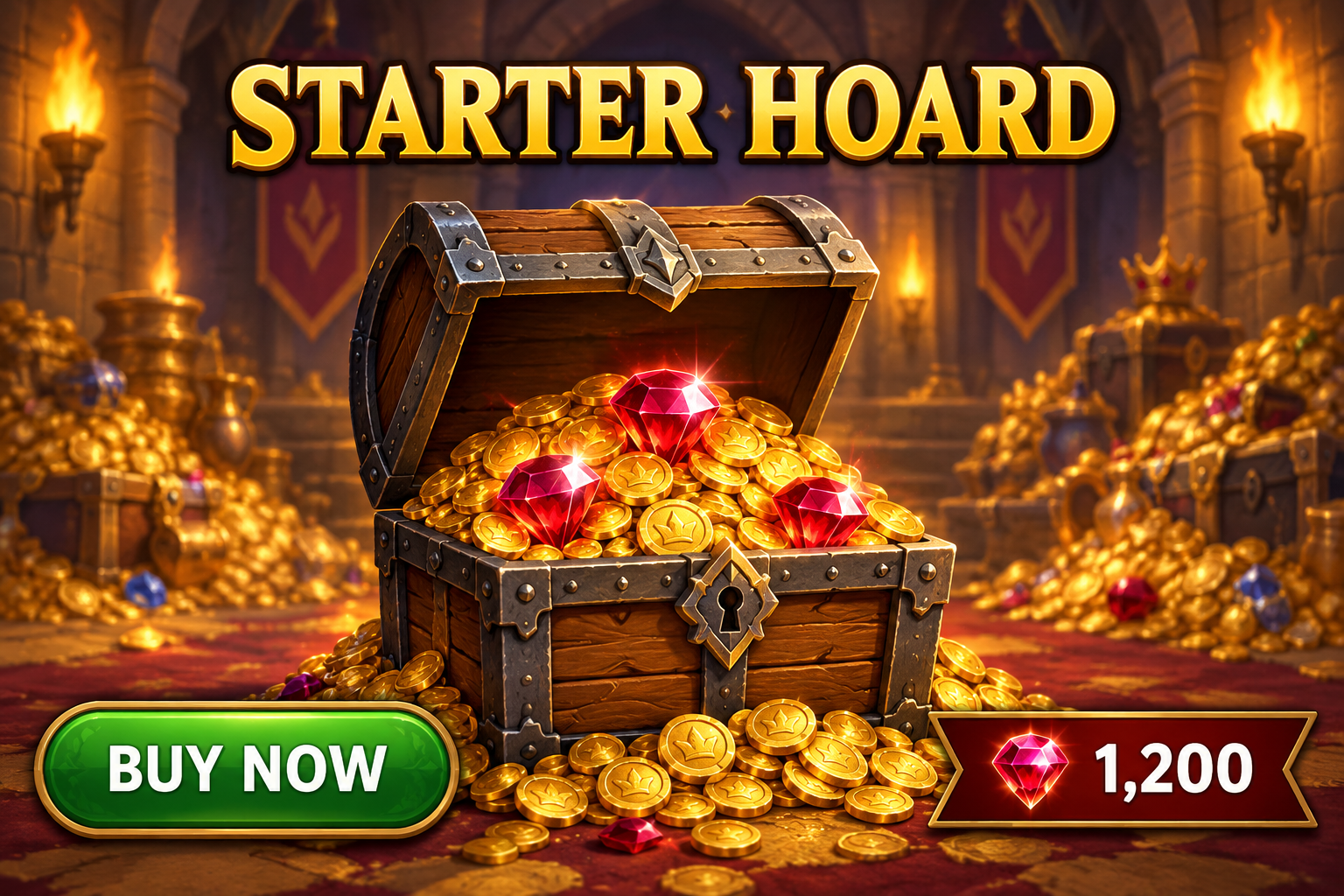
You don't have to write any of this yourself. The Layer agent knows how to prompt each model it runs, from the same guidance this page is built on. Name the model and say what the image is for and what it must say, for example: Make a 3:2 store banner with GPT Image 2.5 Flare: an open treasure chest, the title "STARTER HOARD" at the top, the price "1,200" bottom right and a "BUY NOW" button bottom left. The agent writes the prompt, shows you its plan, and runs it when you approve. Use the rest of this guide when you want to write or adjust the prompt yourself, and see Write a brief for the agent for how to brief it.
When to use it
Use GPT Image for anything with text in it (store and event banners, shop and inventory screens, title screens, cards, posters), for interface mockups, and for dense briefs where several objects, labels and positions all have to land. It also makes cut-out assets on a transparent background.
It is less suited to keeping one recurring character identical across separate generations. For a cast, generate one approved image and edit from it (see Edit an image with a prompt), or try another model from the model picker. For the basics of the tool, see Create images.
Versions on Layer
GPT Image 2.5 Sunburst
The higher-fidelity 2.5 model. It takes longer per image. Move to it when Flare's result falls short of what you need.
GPT Image 2.5 Flare
The faster 2.5 model, and the one this guide's examples were made with. Start here: on our store banner it got every piece of text right and in place, as Sunburst did.
GPT Image 2
The previous generation. It renders text well and offers three quality levels where the 2.5 models offer five. Prefer a 2.5 model for new work.
How to write the prompt
What the image is for, then the scene, the subject, the text with its place and look, the style, and the constraints:
Use: in-game store banner for a fantasy mobile RPG.
Scene: a warm, torchlit castle treasury, piles of gold coins and gems in soft focus behind.
Subject: an ornate wooden treasure chest with iron bands, lid open, spilling gold coins and three glowing red gems, centred in the lower half.
Text: across the top, the title "STARTER HOARD" in bold gold serif capitals with a dark outline, centred. Bottom right, a dark red ribbon plaque with the price "1,200" in bold white sans-serif beside a small red gem icon. Bottom left, a green rounded button labelled "BUY NOW" in white uppercase letters.
Style: polished stylised painterly game art, saturated colours, clean readable UI.
Constraints: render each piece of text exactly once, with the spelling and capitalisation exactly as quoted; no other text, no watermark, no logos.
GPT Image plans the picture before it draws it, so a brief that reads like a spec works better than a string of keywords. Naming the use first ("store banner", "shop screen", "title screen") sets the layout and finish it aims for. Labelled lines keep a long brief easy to read and to change one part at a time; a paragraph works too. That prompt made the banner in the clip above.
What works
Quote the text and say where it goes
Put every word that appears in the image in quotes, and give each piece its position and look: "Bottom right, a dark red ribbon plaque with the price "1,200" in bold white sans-serif". We ran this against a loose version ("with the title starter hoard at the top, a price of 1200 and a buy now button") on the same seed. Both spelled every word right. Only the quoted prompt put the price and the button where we asked and kept the comma in "1,200"; the loose one placed them where it liked.
Say the capitalisation in words
Capitals inside the quotes are not always kept. With only the quotes, "BUY NOW" came back as "buy now". Adding "in white uppercase letters" and "with the spelling and capitalisation exactly as quoted" fixed it on the same seed. On a shop screen, item names quoted in title case came back all lower case, so state the case whenever it matters.
Describe an interface as finished
For a shop, inventory or menu screen, describe it as a shipped screen, not a sketch: the panel, the header, the grid, what each card holds and in what order. List the items with their exact labels:
Use: the shop screen of a fantasy mobile RPG, shown as a finished in-game interface, not a sketch.
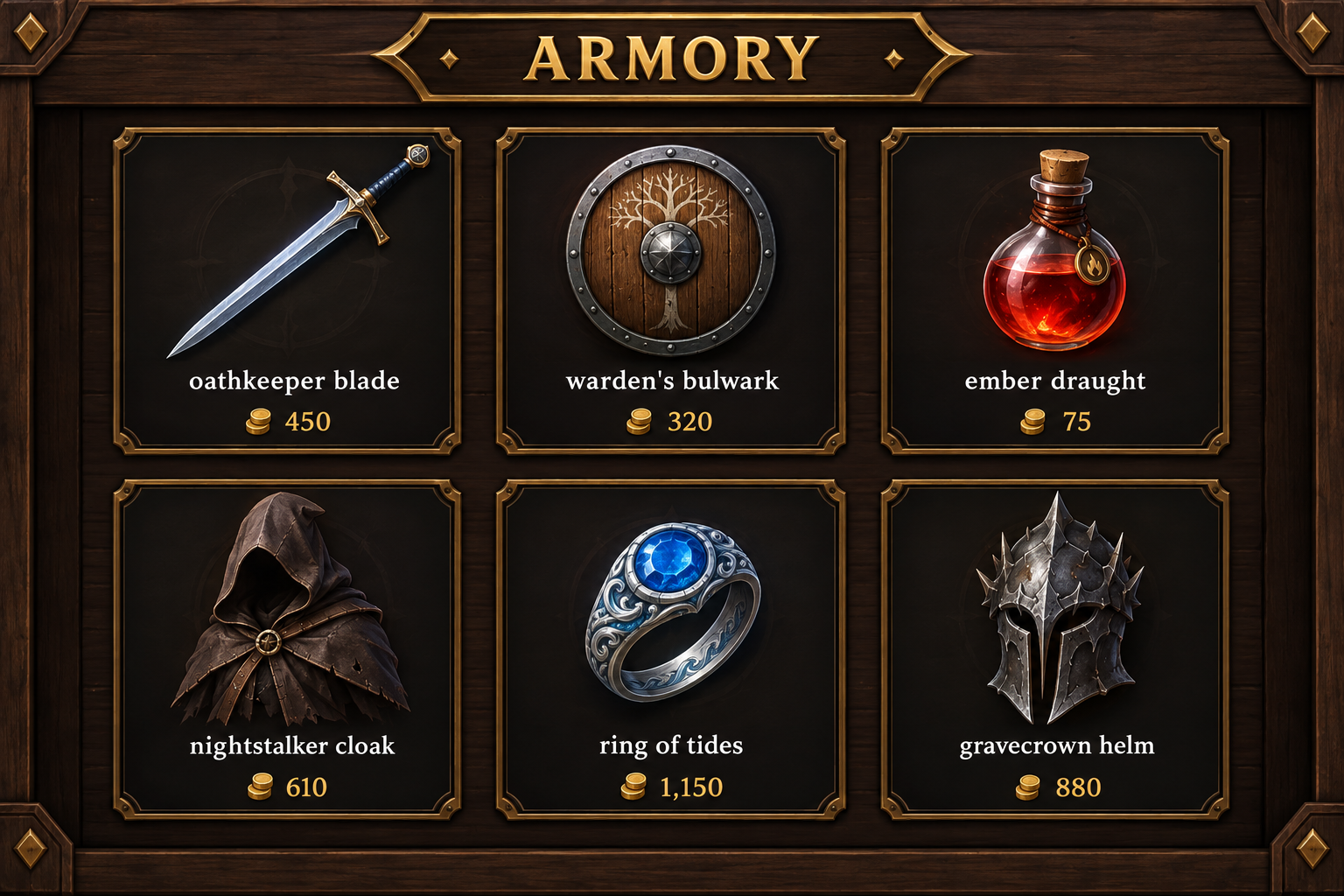
Layout: a dark wooden panel with a header reading "ARMORY" in gold capitals. Below it a grid of six item cards in two rows of three. Each card shows an item icon, its name in small white text and its price in small gold text under the name:
1. a steel longsword, "Oathkeeper Blade", "450"
2. a round oak shield, "Warden's Bulwark", "320"
...
Our run put all six items in the right cards with the right names and prices.
End with the constraints
There is no negative prompt. Close with plain constraints: "render each piece of text exactly once; no other text, no watermark, no logos". None of our runs added stray text.
Frame the shot
Say the framing and viewpoint (close-up, wide, top-down, low angle) and where the subject sits. For a wide scene, give its scale, atmosphere and colours rather than a mood word alone. Write "photorealistic" when you want a photograph, and leave studio-polish words out of stylised game art.
Spell a hard name letter by letter
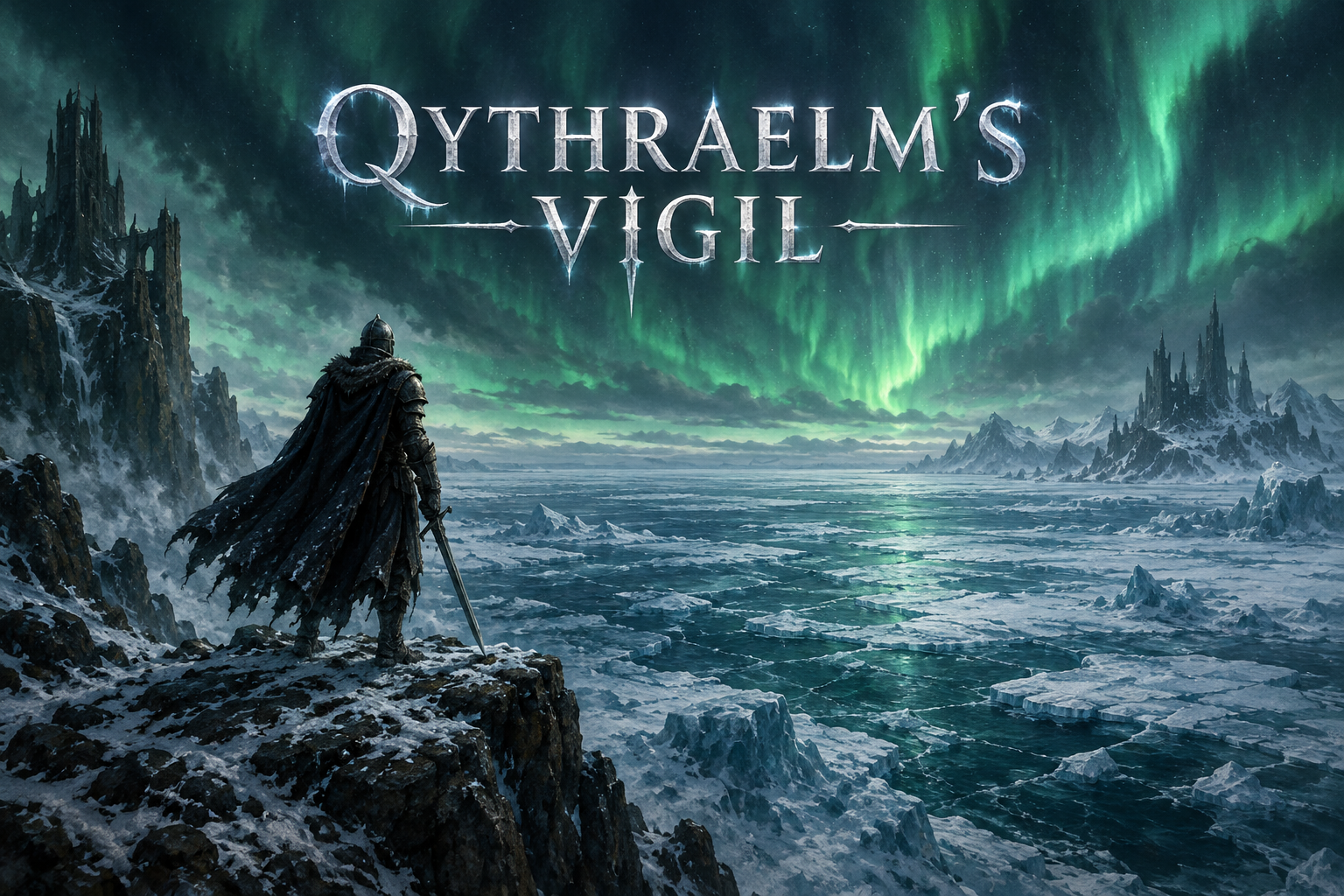
If an invented name comes out wrong, add it spelled out: "Qythraelm's Vigil" (spelled Q-Y-T-H-R-A-E-L-M apostrophe S, then V-I-G-I-L). In our test the model spelled that name right without the help, so keep this as the fix, not a habit.
Cut-out assets
For an item or character on a transparent background, turn on Transparent background and describe the subject as isolated, with no scenery, backdrop, checkerboard or shadow.
What to avoid
Size words in the prompt
"4K", "wide" or "1920x1080" in the prompt do not set the output. Pick the shape and resolution in Aspect ratio.
Changing several things at once
Start from a clean prompt that works and change one thing per run, so you can tell what each change did. Rewriting the whole prompt between runs makes a good result hard to get back.
Regenerating a character for every new shot
The same description gives a slightly different character each time. Once one image is approved, edit it rather than generating the character again.
Text with no quotes and no place
Named loosely, the words still come out spelled right, but the model chooses the layout: in our test it stacked the price and the button on the right and wrote "1200" without its comma. Quote each piece and say where it goes.
❌ In-game store banner for a fantasy mobile RPG: an ornate wooden treasure chest with iron bands, lid open, spilling gold coins and three glowing red gems, in a warm torchlit castle treasury, with the title starter hoard at the top, a price of 1200 and a buy now button. Polished stylised painterly game art, saturated colours.
✅ Use: in-game store banner for a fantasy mobile RPG. Scene: a warm, torchlit castle treasury, piles of gold coins and gems in soft focus behind. Subject: an ornate wooden treasure chest with iron bands, lid open, spilling gold coins and three glowing red gems, centred in the lower half. Text: across the top, the title "STARTER HOARD" in bold gold serif capitals with a dark outline, centred. Bottom right, a dark red ribbon plaque with the price "1,200" in bold white sans-serif beside a small red gem icon. Bottom left, a green rounded button labelled "BUY NOW" in white uppercase letters. Style: polished stylised painterly game art, saturated colours, clean readable UI. Constraints: render each piece of text exactly once, with the spelling and capitalisation exactly as quoted; no other text, no watermark, no logos.
Counting on the quotes to keep capitals
With only the quotes, the button came back as "buy now" in lower case. The fix is two phrases: "in white uppercase letters" after the label, and "with the spelling and capitalisation exactly as quoted" in the constraints.
❌ Use: in-game store banner for a fantasy mobile RPG. Scene: a warm, torchlit castle treasury, piles of gold coins and gems in soft focus behind. Subject: an ornate wooden treasure chest with iron bands, lid open, spilling gold coins and three glowing red gems, centred in the lower half. Text: across the top, the title "STARTER HOARD" in bold gold serif capitals with a dark outline, centred. Bottom right, a dark red ribbon plaque with the price "1,200" in bold white sans-serif beside a small red gem icon. Bottom left, a green rounded button labelled "BUY NOW". Style: polished stylised painterly game art, saturated colours, clean readable UI. Constraints: render each piece of text exactly once, spelled exactly as quoted; no other text, no watermark, no logos.
✅ Use: in-game store banner for a fantasy mobile RPG. Scene: a warm, torchlit castle treasury, piles of gold coins and gems in soft focus behind. Subject: an ornate wooden treasure chest with iron bands, lid open, spilling gold coins and three glowing red gems, centred in the lower half. Text: across the top, the title "STARTER HOARD" in bold gold serif capitals with a dark outline, centred. Bottom right, a dark red ribbon plaque with the price "1,200" in bold white sans-serif beside a small red gem icon. Bottom left, a green rounded button labelled "BUY NOW" in white uppercase letters. Style: polished stylised painterly game art, saturated colours, clean readable UI. Constraints: render each piece of text exactly once, with the spelling and capitalisation exactly as quoted; no other text, no watermark, no logos.
Settings that matter
Aspect ratio sets the shape and resolution, up to 4K and at most 3:1. Quality trades detail for time: draft at Low (our six-card shop screen spelled all its labels right at Low), then raise it for dense text or the final image. Transparent background outputs the subject alone. Reference image takes images to steer the look or the subject; say what each one is for in the prompt. Seed, under the advanced settings, repeats a result when nothing else changes.
Prompts to start from
Store banner
Use: in-game store banner for a fantasy mobile RPG.
Scene: a warm, torchlit castle treasury, piles of gold coins and gems in soft focus behind.
Subject: an ornate wooden treasure chest with iron bands, lid open, spilling gold coins and three glowing red gems, centred in the lower half.
Text: across the top, the title "STARTER HOARD" in bold gold serif capitals with a dark outline, centred. Bottom right, a dark red ribbon plaque with the price "1,200" in bold white sans-serif beside a small red gem icon. Bottom left, a green rounded button labelled "BUY NOW" in white uppercase letters.
Style: polished stylised painterly game art, saturated colours, clean readable UI.
Constraints: render each piece of text exactly once, with the spelling and capitalisation exactly as quoted; no other text, no watermark, no logos.
Result |
|---|
 |
Shop screen
Use: the shop screen of a fantasy mobile RPG, shown as a finished in-game interface, not a sketch.
Layout: a dark wooden panel with a header reading "ARMORY" in gold capitals. Below it a grid of six item cards in two rows of three. Each card shows an item icon, its name in small white text and its price in small gold text under the name:
1. a steel longsword, "Oathkeeper Blade", "450"
2. a round oak shield, "Warden's Bulwark", "320"
3. a red potion flask, "Ember Draught", "75"
4. a hooded leather cloak, "Nightstalker Cloak", "610"
5. a silver ring with a blue stone, "Ring of Tides", "1,150"
6. a spiked iron helm, "Gravecrown Helm", "880"
Style: polished stylised game UI, clean spacing, consistent card frames.
Constraints: every label exactly as quoted, each once; no other text, no watermark.
Result |
|---|
 |
Title screen
Title screen for a dark fantasy game: a lone knight on a cliff facing a vast frozen sea under green auroras. Centred in the upper third, the game logo "Qythraelm's Vigil" in large weathered silver capitals with a faint frost glow. Stylised painterly key art. Render the logo exactly once; no other text, no watermark.Result |
|---|
 |
Use it in Layer
In a session, open Create image from the side panel.
Click the model name at the top of the panel and choose GPT Image 2.5 Flare.
In the prompt box, write what the image is for, the scene and subject, every piece of text in quotes with its place and look, the style and the constraints.
Open Aspect ratio and pick the shape you need, here 3:2.
Click Create image. The cost shows on the button before you click.
When the image lands on the board, click View to open it full-size and check every word. Then change one thing in the prompt at a time and run it again.
Learn more
GPT Image 2.5 Sunburst parameters (Layer API docs): every setting the model accepts.
GPT Image 2.5 prompting guide (OpenAI): the prompt order, quoting exact text with its position and typography, interface mockups, transparency, and how to choose between Flare and Sunburst.
Image generation models prompting guide (OpenAI Cookbook): worked prompts for GPT Image 2, letter-by-letter spelling, framing and photorealism cues, and when a higher quality setting is worth it.
Image generation (OpenAI): what the models can and cannot do, including their limits with exact text placement and recurring characters.
GPT Image 2 text to image (fal): a prompt template (scene, subject, details, use, constraints) and the size limits.