Prompt Grok Imagine for text-to-image
Last updated: October 30, 2026
Grok Imagine turns a written brief into finished game art: character concepts, key art, and title logos with legible lettering. Pick it when you can describe the image in a few clear sentences and want it to follow the details you name.
Try Grok Imagine Image 2.0 in Layer
Let the agent write it
You don't have to write any of this yourself. The Layer agent knows how to prompt each model it runs, from the same guidance this page is built on. Name the model and say what you need, for example: Use Grok Imagine Image 2.0 to make a 16:9 concept of a dwarven blacksmith in his forge, hand-painted fantasy style, warm forge light against a cool window. The agent writes the prompt, shows you its plan, and runs it when you approve. Use the rest of this guide when you want to write or adjust the prompt yourself, and see Write a brief for the agent for how to brief it.
When to use it
Use Grok Imagine for character and environment concepts, key art, and logos or title cards where a short line of text must be spelled right. It follows specific details (what each hand holds, where each light comes from) when you write them as sentences.
To change an image you already have, see Edit an image with a prompt. To compare it with other models on the same brief, see Choose a model.
Versions on Layer
Grok Imagine Image 2.0
The version this guide's examples were made with. It has a Quality setting (Low or Medium), renders at 1K or 2K, and gives a detailed, painterly finish. It also sets titles as designed lockups rather than plain lettering.
Grok Imagine Image
The original model, at 1K or 2K with no quality setting. The same prompt comes out with cleaner, flatter, more cartoon-like shapes. The two versions read prompts alike but look different, so keep one asset set on one version.
How to write the prompt
Subject, then setting, then composition, then light, then the finish, in full sentences:
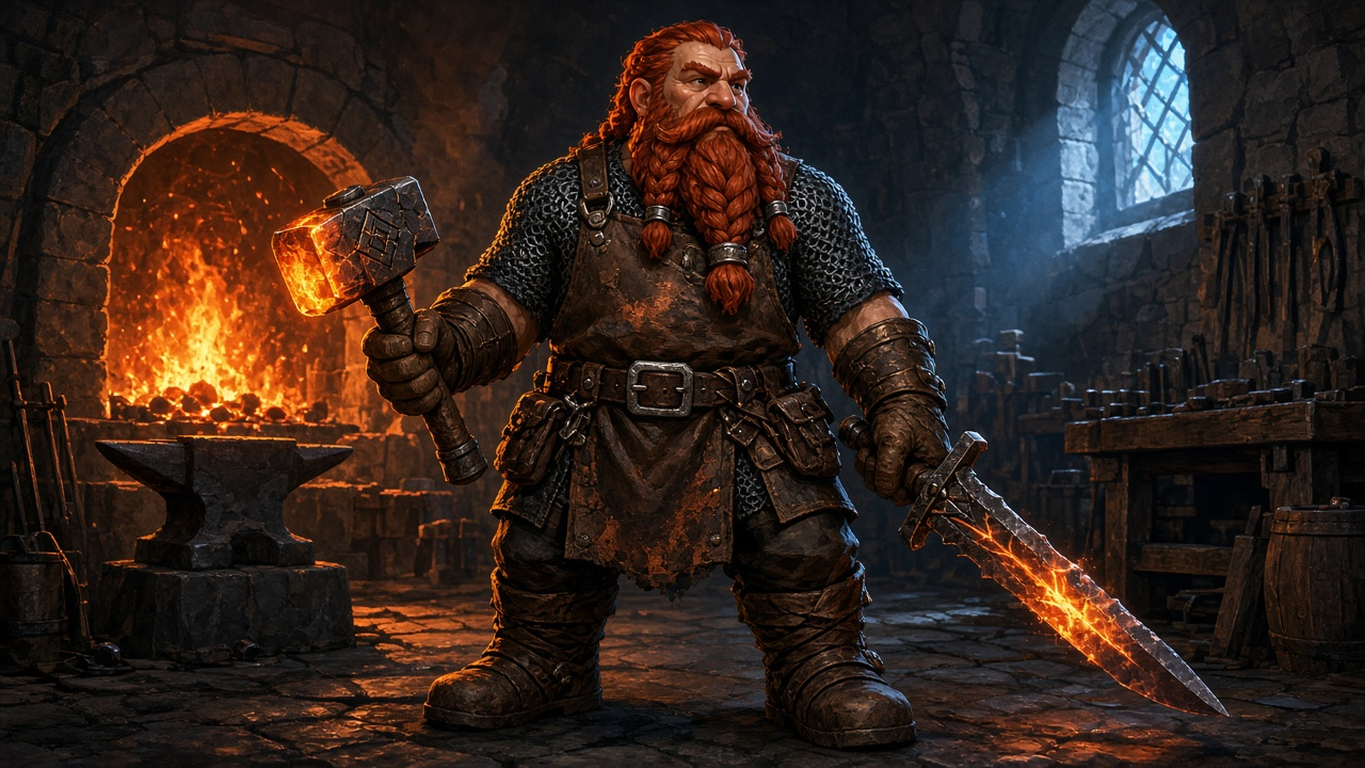
Full-body character concept art of a stout dwarven blacksmith standing in three-quarter view, a glowing hammer in his right hand and a half-forged sword in his left. He wears a scorched leather apron over a chainmail shirt, his braided red beard tucked into his belt. Behind him a forge glows orange in a dim stone workshop. Warm rim light from the forge, cool blue fill from a high window. Stylised hand-painted fantasy game art, clean silhouette, readable shapes.The opening words carry the most weight, so the first sentence says what the image is and who is in it. Every detail you need to come out right gets its own words: what each hand holds, the material of each garment, the direction of each light. That prompt is the one in the clip above.
What works
Sentences, not tags
We ran the prompt above against the same content as a tag list ("dwarf, blacksmith, hammer, sword, leather apron, ... masterpiece, best quality, 8k, trending on artstation") with the same seed. Both came out as finished, well-lit images, but only the sentences delivered what they asked for: the glowing hammer, the half-forged blade, cool window light against the warm forge. The tag list got a scene the model chose for itself, and its quality tags added nothing you could see.
Text in quotes
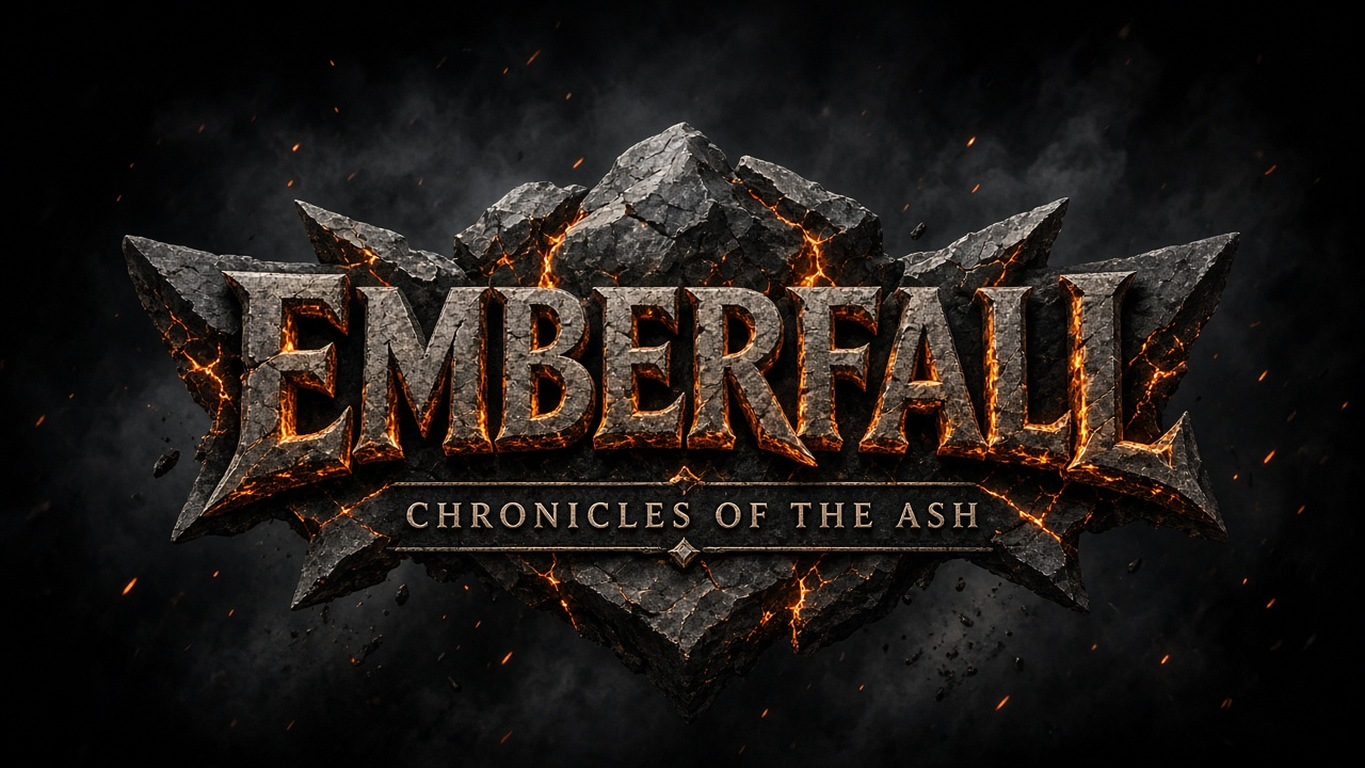
Put the exact words in double quotes and say how they look and where they sit: the word "EMBERFALL" in bold carved stone letters, centred, and the smaller subtitle "Chronicles of the Ash" beneath it in clean serif capitals. In our test both versions spelled the title and the subtitle correctly. Grok Imagine Image 2.0 built a full logo lockup around them; the original set the same words as plain chunky letters. Check every letter before a logo ships.
Plain exclusions
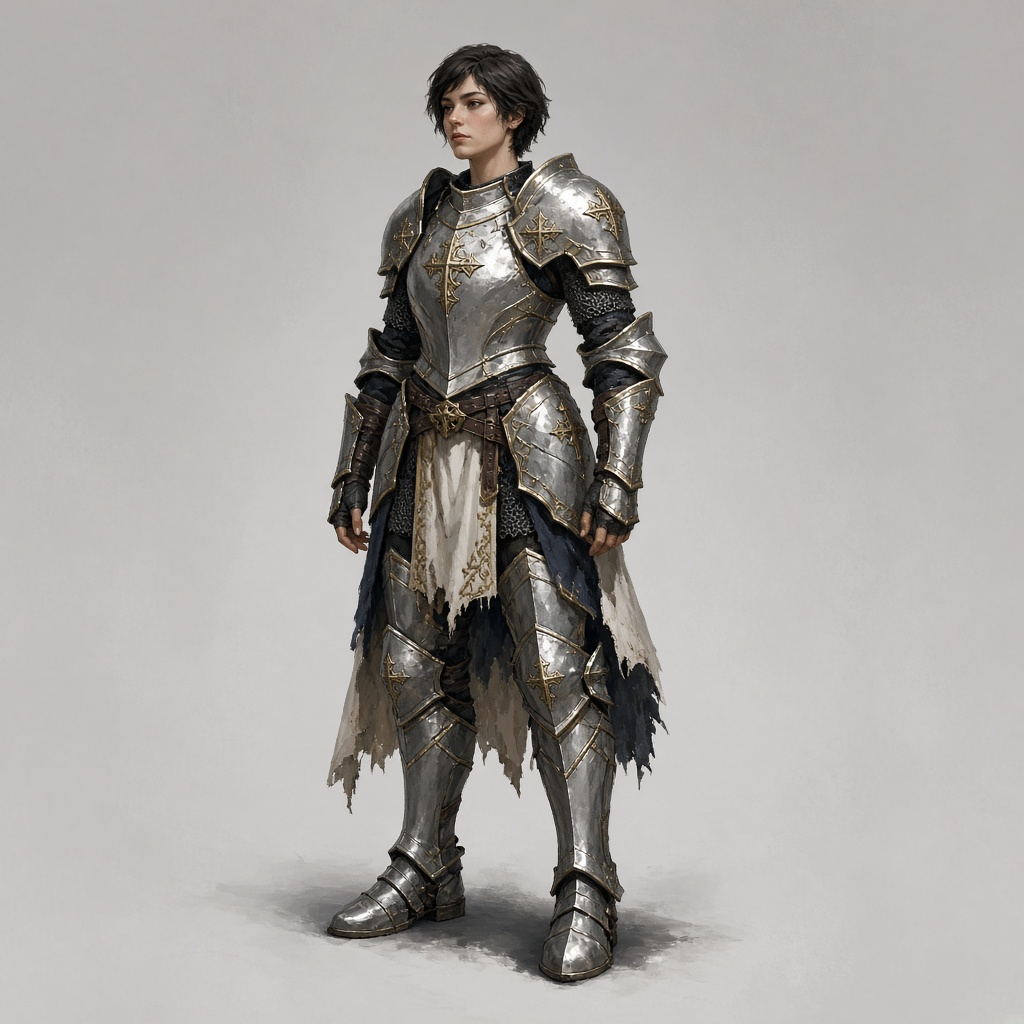
There is no negative prompt; write exclusions into the prompt. On Grok Imagine Image 2.0, "no helmet, no cape, no shield" gave us a bare-headed paladin with no cape and empty hands. Saying what goes there instead also works, and lets you choose it: "bare-headed, her short dark hair and face uncovered" got exactly that hair.
Name the shot and the light
Use the words a photographer or cinematographer would: three-quarter view, wide shot, close-up, overhead, shallow depth of field, rim light, soft window light from the left. The model applies named terms; "good lighting" gives it nothing to work with.
Name the details that must be right
On a busy image, call out what matters: the weapon, the emblem, the number of characters. Anything you leave unnamed drifts toward a generic version.
What to avoid
Changing quality on a seed you like
A seed does not carry an image across a quality change. In our test, the same prompt and seed at Medium recomposed the scene (the forge moved to the other side and an anvil appeared) rather than sharpening the Low image. Settle the quality before you lock a seed.
Quality tags
"Masterpiece, best quality, 8k, trending on artstation" did nothing visible in our test. Spend those words on what you want in the picture.
A tag list instead of sentences
On the same seed, a tag list still gave a finished image, but of a scene the model chose: an anvil in the foreground and a plain steel sword, with no glowing hammer, no half-forged blade and no blue window light.
❌ dwarf, blacksmith, hammer, sword, leather apron, chainmail, red beard, forge, stone workshop, rim light, fantasy, game art, concept art, full body, masterpiece, best quality, 8k, highly detailed, trending on artstation
✅ Full-body character concept art of a stout dwarven blacksmith standing in three-quarter view, a glowing hammer in his right hand and a half-forged sword in his left. He wears a scorched leather apron over a chainmail shirt, his braided red beard tucked into his belt. Behind him a forge glows orange in a dim stone workshop. Warm rim light from the forge, cool blue fill from a high window. Stylised hand-painted fantasy game art, clean silhouette, readable shapes.
Settings that matter
Aspect ratio sets the shape and the resolution: each shape comes at 1K or 2K. Explore at 1K, then render the keeper at 2K. On Grok Imagine Image 2.0, Quality is Low or Medium; Low is enough to find a direction. Seed, under the advanced settings, repeats a result when nothing else changes. Reference image takes up to two images to guide the result.
Prompts to start from
Character concept
Full-body character concept art of a stout dwarven blacksmith standing in three-quarter view, a glowing hammer in his right hand and a half-forged sword in his left. He wears a scorched leather apron over a chainmail shirt, his braided red beard tucked into his belt. Behind him a forge glows orange in a dim stone workshop. Warm rim light from the forge, cool blue fill from a high window. Stylised hand-painted fantasy game art, clean silhouette, readable shapes.Result |
|---|
 |
Title logo
Title screen logo for a fantasy game: the word "EMBERFALL" in bold carved stone letters with glowing orange cracks, centred, and the smaller subtitle "Chronicles of the Ash" beneath it in clean serif capitals. Dark smoky background with drifting embers. Stylised game logo design.Result |
|---|
 |
Character on a neutral background
Full-body game character concept of a bare-headed female paladin in silver plate armour, her short dark hair and face uncovered, her back plate bare, both hands empty at her sides, standing in a neutral pose on a plain light grey background. Stylised hand-painted fantasy game art.Result |
|---|
 |
Use it in Layer
In a session, open Create image from the side panel.
Click the model name at the top of the panel and choose Grok Imagine Image 2.0.
In the prompt box, write the subject first, then the setting, the light and the style, in full sentences.
Open Aspect ratio and pick the shape the art ships in, at 1K while you explore.
Click Create image. The cost shows on the button before you click.
When the image lands on the board, click View to open it in the viewer. Check the details you named, then change one thing in the prompt at a time and run it again.
Learn more
Grok Imagine Image 2.0 parameters (Layer API docs): every setting the model accepts.
Imagine Image 2.0 (xAI): what 2.0 was built for, including instruction following and typography planned as a designer would.
Image generation (xAI): the parameters the model takes (aspect ratio, 1K and 2K resolution, quality) and what each default does.
Prompting Grok Imagine Image 2.0 (Runware): a five-part prompt (subject, setting, composition, light, finish), the shot and lens terms it applies, and iterating at 1K.
Grok Imagine prompt guide (thoxakihiko, GitHub): field-tested patterns checked against xAI's API docs, including front-loading and positive phrasing.