Prompt Meshy for rigging and animation
Last updated: October 30, 2026
Meshy Rigging fits a skeleton to a character mesh and plays a preset animation on it in one run, returning a GLB you can drop into an engine. Pick it when a humanoid character is modelled and the job is making it move: an idle, a walk cycle, an attack, a spell cast.
Let the agent write it
You don't have to set any of this up yourself. The Layer agent knows how to prepare a mesh for each model it runs, from the same guidance this page is built on. Attach the mesh in chat, name the model and the motion, for example: Rig this with Meshy Rigging and play the Cast Spell animation on it. If the character still has to be built, ask for that too, and the agent builds it in an A-pose first. It shows you its plan, and runs it when you approve. Use the rest of this guide when you want to prepare the mesh yourself, and see Write a brief for the agent for how to brief it.
When to use it
Use Meshy Rigging for textured humanoid characters with a clear body and separate limbs: heroes, NPCs and enemies that need standard game motion. Its presets cover idles, walks and runs, jumps and climbs, attacks, blocks, hit reactions and deaths, spell casts and dances.
It does not rig props, vehicles or untextured meshes, and it has no presets for choreographed one-off motion or facial animation. For those, export the rigged mesh and animate it in Blender or Maya, or retarget your own clips onto its skeleton. To build the character first, see Choose a model and our guide to Meshy for image-to-3D.
Versions on Layer
Meshy Rigging
Rigs a mesh you already have and, with a preset in its Animations slot, plays that motion on it. To rig while you generate, turn on Rigging (and add a preset) in the Meshy V6, V7 or V7.1 form instead; use Meshy Rigging for a mesh that is already on the board.
How to write the prompt
Meshy Rigging takes no prompt. The motion is a named preset you add to its Animations slot, and without one the run only rigs. What decides the result is the mesh you feed it, so the "prompt" work happens upstream, in the image you build the character from:
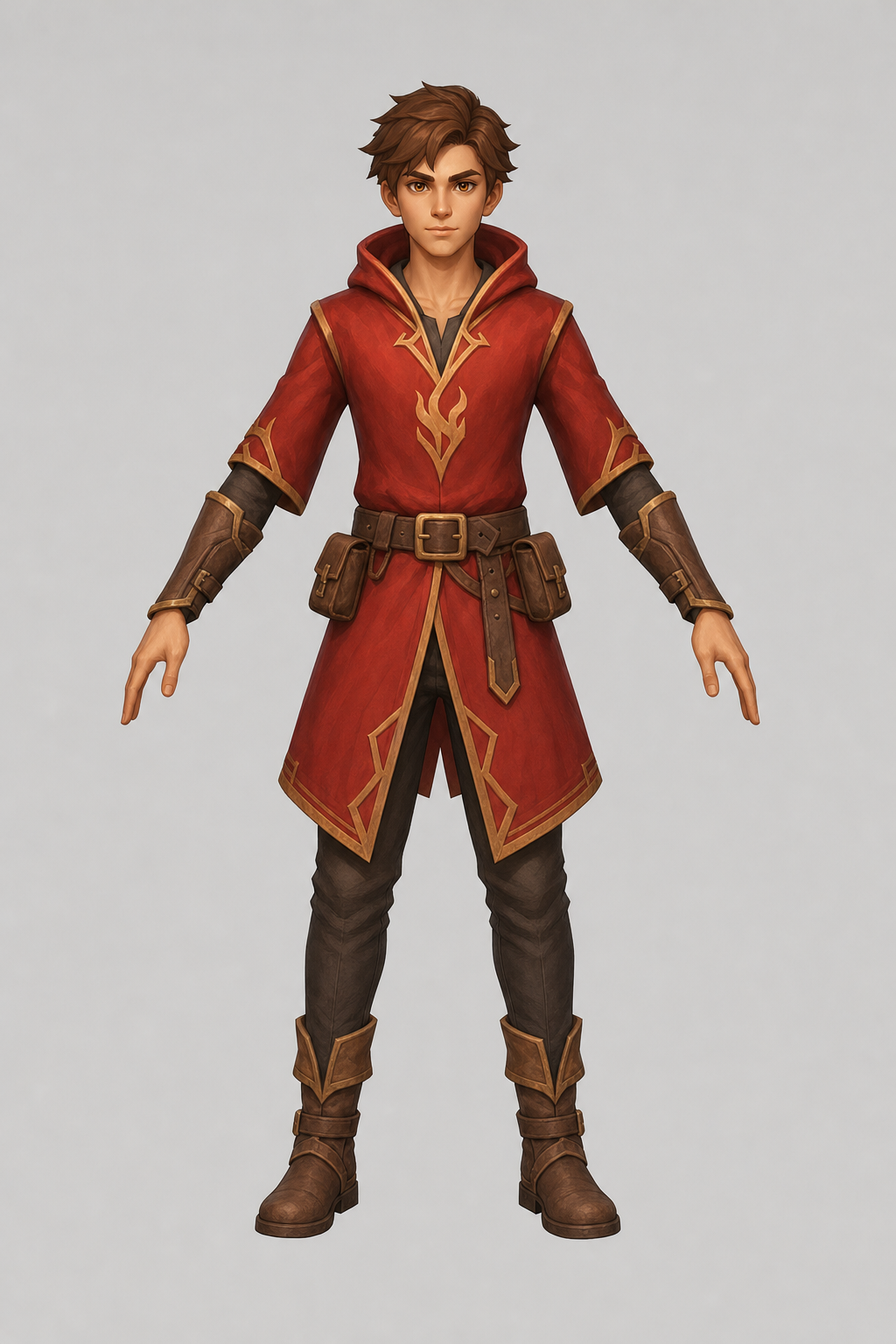
Full-body 3D game character render of a young fire mage for rigging: fitted red hooded tunic that ends above the knee, leather bracers, slim trousers, brown boots, a belt with two small pouches, empty hands, no cape, no staff, nothing held. Front view, straight-on orthographic-style camera at chest height, the whole figure from head to boots in frame with a little margin. A-pose: arms straight and angled down about 45 degrees away from the body, fingers relaxed and slightly apart, feet shoulder-width apart, legs not touching. Stylised hand-painted game art look, clean readable shapes. Plain flat light-grey background, soft even studio lighting, no cast shadows, no text.Empty hands, fitted clothes, limbs apart, a rest pose: each of those removes a way the rig can go wrong. Build the mesh from that image with Pose set to A-pose, then rig it.
What works
A mesh built in an A-pose or T-pose
Build the character with the generation form's Pose set to A-pose or T-pose, then rig it. We rigged the same mage twice with the Cast Spell preset: once built in an A-pose, once with his arms down as drawn. Both rigs played the cast. On the A-pose mesh the raised hand stayed a clean open hand; on the arms-down mesh the hand and the cloak edge it touched stretched into long strips as the arm went up.
Pick the motion as a preset
Click the Animations slot and choose a preset by name: Idle, Walk, Run, Sword Strike, Cast Spell, Hit Reaction. One preset plays per run; run the rig again with another preset for the next clip.
Limbs apart, hands clear
Parts that touch are bound to the same bones and move together. Arms away from the body, legs apart and hands clear in the mesh give the rig something to separate.
A forward-facing, grounded character
The character has to face forward, stand on the ground and be centred; a mesh facing another way fails pose detection. Meshes Meshy generates already face forward.
A reasonable polygon count
Keep the mesh under 300,000 faces, which is the limit; under 100,000 rigs faster and runs better in an engine. A clean, quad-based mesh bends more cleanly at elbows, knees and shoulders.
What to avoid
Props in the character's hands
Anything the character holds is skinned to the skeleton. In our test the mage's staff bent like a rope through the whole cast, both when it stood beside him and when it was in his hand. Rig the character empty-handed, generate the prop as its own mesh, and attach it to the hand bone in your engine or DCC.
Long capes and skirts
There is no cloth simulation: fitted clothing deforms with the body, but a long cape or skirt stretches and folds where the legs and arms move. Keep costume fitted on a character you will animate, or plan to fix the cloth by hand.
Non-humanoid or untextured meshes
Props, vehicles, creatures with a body plan the rigger cannot read, and meshes with no texture do not rig. Generate the character with textures on.
Settings that matter
Source mesh is the character to rig; select it on the board and click the slot. The Animations slot takes one preset; leave it empty for a rig with no motion. The result is one GLB with the mesh, its skeleton and the clip; open it in the viewer to watch it play.
Prompts to start from
Meshy Rigging has no prompt, so this is the image prompt for a character that rigs cleanly; build the mesh from it with Pose set to A-pose.
Rig-ready character source
Full-body 3D game character render of a young fire mage for rigging: fitted red hooded tunic that ends above the knee, leather bracers, slim trousers, brown boots, a belt with two small pouches, empty hands, no cape, no staff, nothing held. Front view, straight-on orthographic-style camera at chest height, the whole figure from head to boots in frame with a little margin. A-pose: arms straight and angled down about 45 degrees away from the body, fingers relaxed and slightly apart, feet shoulder-width apart, legs not touching. Stylised hand-painted game art look, clean readable shapes. Plain flat light-grey background, soft even studio lighting, no cast shadows, no text.Result |
|---|
 |
Use it in Layer
Add the character mesh to a session's board.
In the side panel to the right of the board, under Tools, click Animate mesh. If it is not in the list, click See all tools.
Click the model name at the top of the form and choose Meshy Rigging.
Select the character on the board, then click Source mesh in the form. The mesh fills the slot.
Click the Animations slot under Reference sets, pick a preset such as Cast Spell in Select animation, and click Add. Presets are picked here in the side panel; the viewer's Animate mesh form has no Animations slot.
Click Animate. The cost shows on the button before you click. A tile appears on the board and shows the run's progress.
When the rigged character lands, click View on its tile to watch it play the preset. Turn on Show skeleton to check that the joints sit at the shoulders, elbows, hips and knees. Run it again with another preset for the next clip.
Learn more
Meshy Rigging parameters (Layer API docs): every setting the model accepts.
Rigging and animation API (Meshy): which meshes rig well, the face limit, the facing direction, and what comes back.
Animate (Meshy): the rest pose to build in, what the preset library covers, and the motions it cannot do.
How to AI auto-rig a 3D character (Meshy): the five common rigging faults and the fix for each.
Fix character pose, face, and hand issues in Meshy (Meshy Help Center): how to set up the character before the rig.
Animation library (Meshy): the preset motions, grouped by category.