Prompt FLUX for text-to-image
Last updated: October 30, 2026
FLUX turns a written description into finished game art: key art, environments, props and title cards with lettering that reads. Pick it when you can describe the picture in plain sentences and want the words on signs and banners spelled right.
Let the agent write it
You don't have to write any of this yourself. The Layer agent knows how to prompt each model it runs, from the same guidance this page is built on. Name the model and describe the picture, for example: Make key art with FLUX.3 Image: a dwarf blacksmith at his anvil under a sign that reads IRONHEART FORGE, hand-painted fantasy style, square. The agent writes the prompt, shows you its plan, and runs it when you approve. Use the rest of this guide when you want to write or adjust the prompt yourself, and see Write a brief for the agent for how to brief it.
When to use it
Use FLUX for key art, environment and background paintings, props, menu and store art, and anything with a word or a short line of text in the scene. It follows long, specific descriptions closely and renders quoted words correctly.
To change an image you already have rather than start from nothing, see Edit an image with a prompt. For the basics of the tool, see Create images.
Versions on Layer
FLUX.3 Image
The version this guide's main example was made with. It renders at 1K, 2K or 4K, takes up to 10 reference images, and expands a short prompt into a full description itself. It takes no seed, so every run is a new draw.
FLUX.2 [max]
The most detailed FLUX.2 model, with a Seed for repeatable runs and a Transparent background switch for cut-out props and UI pieces.
FLUX.2 [pro]
The same controls as FLUX.2 [max], quicker. Use it to explore a prompt with a fixed seed, then render the keeper on the model you prefer.
How to write the prompt
The subject and what it is doing, then the scene, then any words in quotes, then the style and palette:
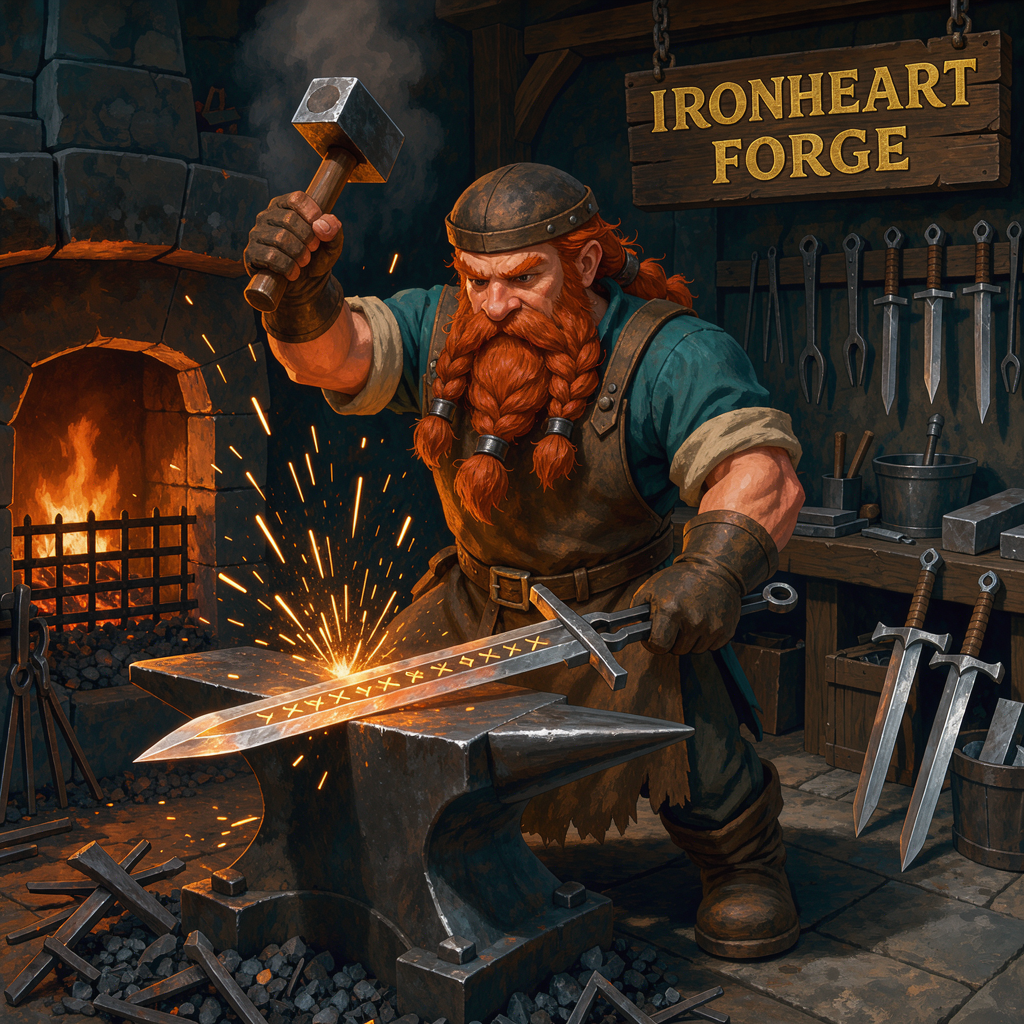
A stout dwarf blacksmith with a braided red beard raises a hammer over a glowing rune sword on an anvil, sparks flying, inside a cramped stone forge lit by the furnace. Above him hangs a weathered wooden sign carved with the words "IRONHEART FORGE" in capital letters, bold gold serif type. Stylised hand-painted fantasy game key art, bold readable shapes, warm orange and deep teal palette.Write a description of the finished picture in full sentences, not a list of tags. FLUX gives the most weight to what comes first, so lead with what matters most: usually the subject, but when the look is the point (a pixel-art screen, a pencil sketch), open with the medium. That prompt is the one in the clip above.
What works
Spelling out the lettering
Put the exact words in quotes, then say where they sit and what the type looks like: a weathered wooden sign carved with the words "IRONHEART FORGE" in capital letters, bold gold serif type. State the case in words. In our test on FLUX.3 Image, the words quoted in capitals alone came back as "ironheart forge" in lowercase; adding "in capital letters" gave IRONHEART FORGE. Both were spelled correctly. Check every quoted string in the result before it ships.
Concrete style and light
Name what you could point to in the frame. "Stylised hand-painted fantasy game key art, bold readable shapes" or "the grainy texture of mid-20th-century colour film" steers the image; "beautiful", "masterpiece" or "vintage" do little. Give the light a source, a direction and a quality: "lit by the furnace", "soft window light from the left".
Word order on FLUX.2
FLUX.2 weights early words most. We ran the same forge prompt subject first and style first on the same seed: both came back in the same painted style with the same dwarf, but the composition changed (the subject-first run had him holding the sword, the style-first run mid-swing). Reorder to shift emphasis, not to fix a missing style.
Length
FLUX.3 Image works from a short prompt and fills in the rest; add sentences only for what you want to control. On FLUX.2, 30 to 80 words suits most images.
Exact colours
A hex code works when it is tied to one object: "the banner on the left in #600FC2". A loose "use #600FC2 somewhere" lands unpredictably.
JSON prompts
FLUX.2 reads a JSON object as well as prose. We ran the forge prompt both ways on the same seed:
{
  "scene": "inside a cramped stone forge lit by the furnace",
  "subjects": [
    {
      "description": "a stout dwarf blacksmith with a braided red beard",
      "position": "center",
      "action": "hammers a glowing rune sword on an anvil, sparks flying"
    }
  ],
  "style": "stylised hand-painted fantasy game art, bold readable shapes",
  "color_palette": ["warm orange", "deep teal"]
}
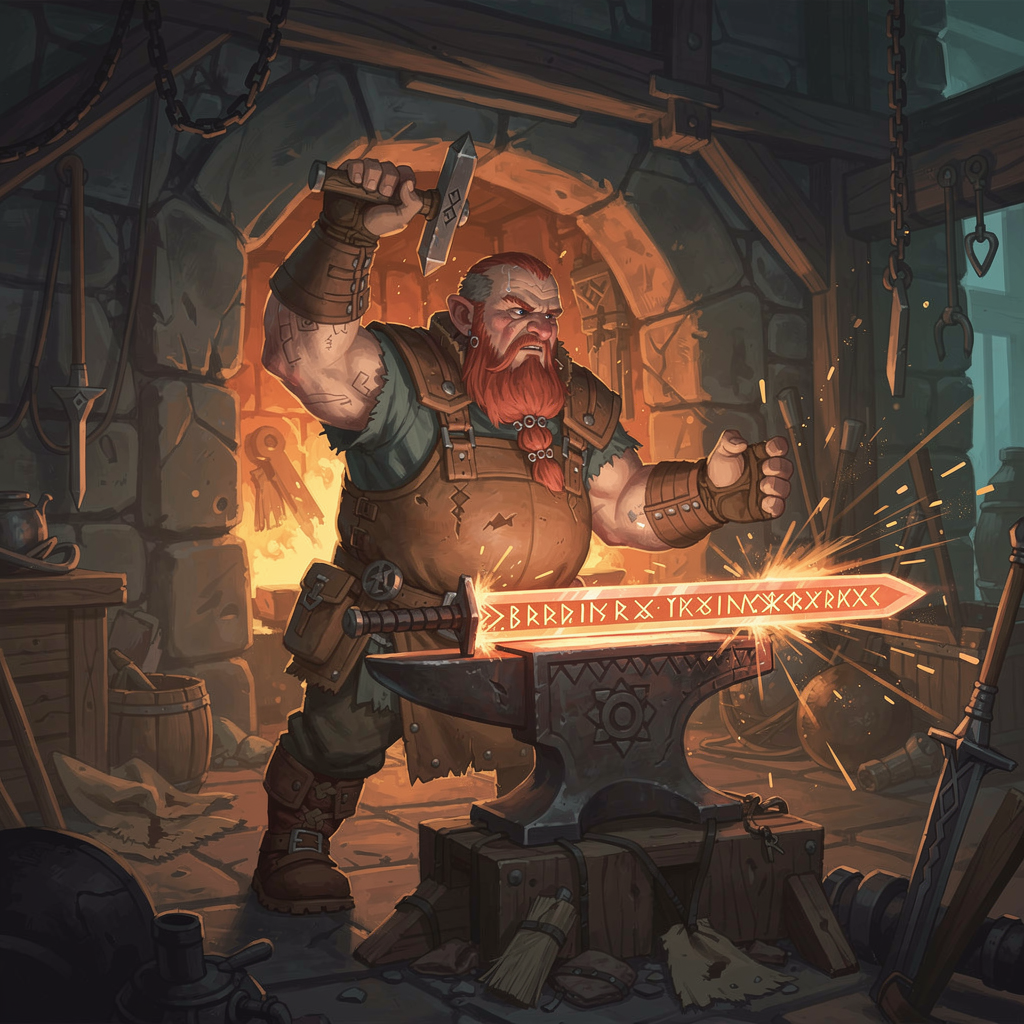
Both gave clean game art of the same dwarf and forge; the JSON run happened to show the hammer raised. JSON is a way to organise a prompt, not a way to improve it: the keys are read as text, so Aspect ratio and Seed still come from the form. It earns its place when a script or workflow assembles prompts from fields.
Reference images
Give each reference a role and refer to it by position: "the character from image 1 wearing the armour from image 2".
Photoreal shots
Name the camera, lens and film stock: "shot on Hasselblad X2D, 80mm lens, f/2.8, natural lighting".
What to avoid
Expecting a negative prompt
These models have no negative prompt. Describe what you want: "an empty, deserted tavern" rather than a list of things to leave out. A short exclusion is not harmful: in our test, "no people" gave an empty room, as "empty, deserted" did. When something keeps appearing anyway, rewrite the prompt in positive terms.
A shape the prompt does not fill
Choose an Aspect ratio that agrees with the prompt. An ultra-wide frame needs something to run across it ("a long valley with a river winding to the horizon"), or the model pads the sides.
Upscaling by re-rendering
A different resolution is a new composition, not the same image larger. Find the image at 1K, then upscale the keeper instead of running the prompt again at 4K.
Quoted capitals with no case named
On FLUX.3 Image, words quoted in capitals alone came back on the sign in lowercase, spelled right; saying "in capital letters" gave capitals.
❌ Stylised hand-painted fantasy game key art. A stout dwarf blacksmith with a braided red beard hammers a glowing rune sword on an anvil, sparks flying, inside a cramped stone forge lit by the furnace. Above him a weathered wooden sign carved with the words "IRONHEART FORGE" in bold gold serif letters. Bold readable shapes, warm orange and deep teal palette.
✅ Stylised hand-painted fantasy game key art. A stout dwarf blacksmith with a braided red beard hammers a glowing rune sword on an anvil, sparks flying, inside a cramped stone forge lit by the furnace. Above him a weathered wooden sign carved with the words "IRONHEART FORGE" in capital letters, bold gold serif type. Bold readable shapes, warm orange and deep teal palette.
Settings that matter
Aspect ratio sets the shape and the resolution (1K, 2K and on FLUX.3 Image 4K). On FLUX.2 [max] and [pro], Seed repeats a run so you can change one word at a time, and Transparent background returns a cut-out. On FLUX.3 Image, Prompt enhancement controls whether your prompt is expanded before it runs, and Reference image takes up to 10 images.
Prompts to start from
Key art with a sign
A stout dwarf blacksmith with a braided red beard raises a hammer over a glowing rune sword on an anvil, sparks flying, inside a cramped stone forge lit by the furnace. Above him hangs a weathered wooden sign carved with the words "IRONHEART FORGE" in capital letters, bold gold serif type. Stylised hand-painted fantasy game key art, bold readable shapes, warm orange and deep teal palette.Result |
|---|
 |
Empty environment background
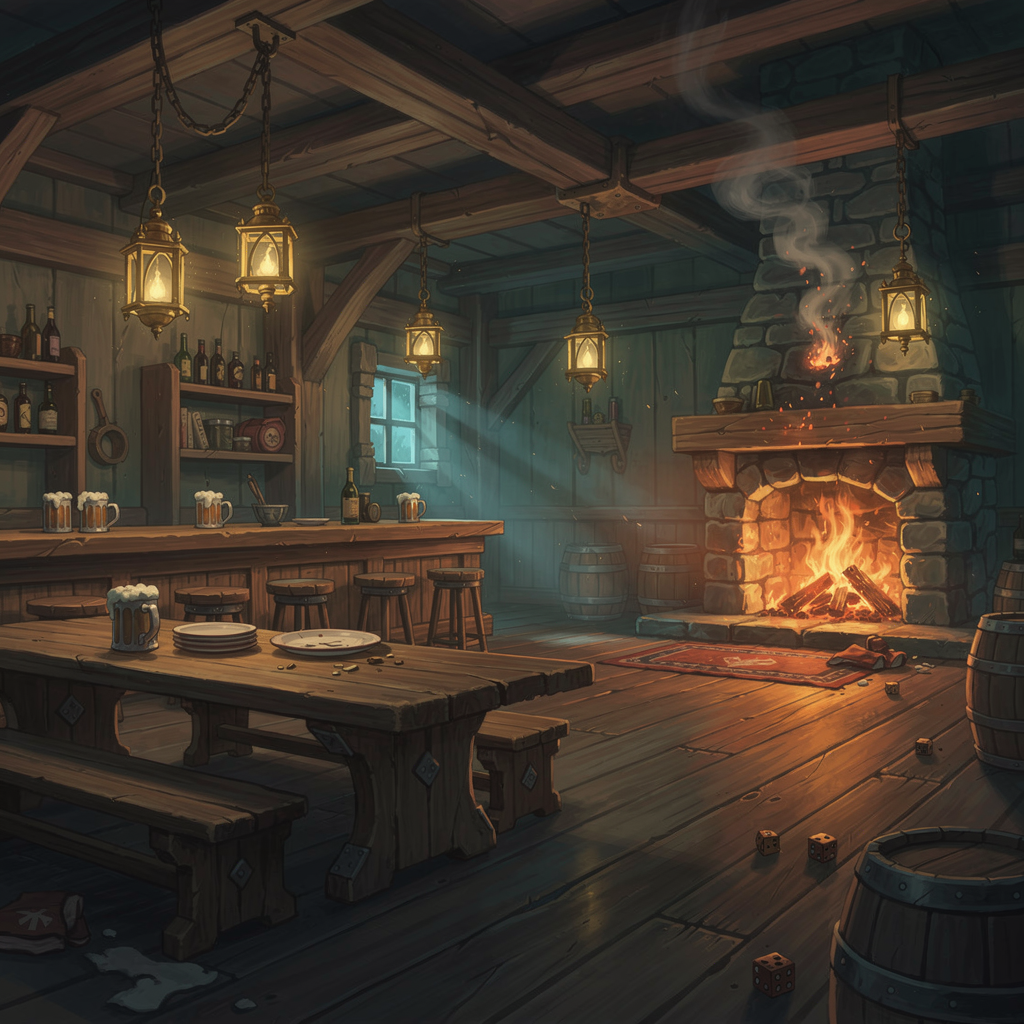
A fantasy tavern interior at night, long wooden tables, a crackling hearth, lanterns hanging from the beams, mugs left on the bar, no people. Stylised hand-painted fantasy game background, warm orange and deep teal palette.Result |
|---|
 |
Structured prompt for a pipeline
{
  "scene": "inside a cramped stone forge lit by the furnace",
  "subjects": [
    {
      "description": "a stout dwarf blacksmith with a braided red beard",
      "position": "center",
      "action": "hammers a glowing rune sword on an anvil, sparks flying"
    }
  ],
  "style": "stylised hand-painted fantasy game art, bold readable shapes",
  "color_palette": ["warm orange", "deep teal"]
}
Result |
|---|
 |
Use it in Layer
In a session, open Create image from the side panel.
Click the model name at the top of the panel and choose FLUX.3 Image.
In the prompt box, write the subject and what it is doing, the scene, any words in quotes, then the style.
Click Create image. The cost shows on the button before you click.
When the image lands on the board, click View to open it and check the lettering. Then change one thing in the prompt at a time and run it again.
Learn more
FLUX.3 Image parameters (Layer API docs): every setting the model accepts.
Building a good prompt (Black Forest Labs): how FLUX.3 Image reads a prompt, the order to write it in, and what each part (subject, setting, light, framing, style) does.
FLUX.2 prompting guide (Black Forest Labs): subject first and word order for FLUX.2, prompt length, hex colours, quoted text and the JSON prompt shape.
Style, aesthetics and text (Black Forest Labs): naming art styles and lighting concretely, and how to ask for lettering that renders correctly.
Technical parameters (Black Forest Labs): choosing an aspect ratio that agrees with the prompt, and writing around the missing negative prompt.
JSON structured prompting (Black Forest Labs): the structured prompt fields FLUX.2 reads, and when they help.