Prompt FLUX for image editing
Last updated: October 30, 2026
FLUX edits an approved image from a written instruction and leaves the rest of it alone: a recolour for another faction, a swapped prop, a new lighting pass, a restyle. Pick it when the image is right except for one thing you can name.
Let the agent write it
You don't have to write any of this yourself. The Layer agent knows how to prompt each model it runs, from the same guidance this page is built on. Attach the image in chat, name the model and say what should change, for example: Edit this with FLUX.3 Image: make the mage's cloak deep blue with silver trim for the second faction, and keep everything else. The agent writes the instruction, shows you its plan, and runs it when you approve. Use the rest of this guide when you want to write or adjust the instruction yourself, and see Write a brief for the agent for how to brief it.
When to use it
Use FLUX for targeted changes to finished art: recolouring a costume or a prop, swapping or removing an object, changing the time of day, updating the words on a sign, or repainting a whole image in another medium while keeping its layout. It keeps a character recognisable across a chain of edits, so you can make one change, check it, and edit the result again.
To make a new image from nothing, see Create images. For the edit tool itself, see Edit an image with a prompt.
Versions on Layer
FLUX.3 Image
The version this guide's main example was made with. It edits at 1K, 2K or 4K and can combine up to 10 images in one edit. It takes no seed.
FLUX.1 Kontext [pro]
An editing model built for repeated changes to the same character, with a Seed and a Guidance scale. Our A/B tests for this guide ran on it.
FLUX.2 [klein] 9B Edit
A fast editing model with a Negative prompt field, Quality and Inference steps controls, and a LoRA slot for a trained style. Given the same instruction as FLUX.3 Image in our test, it made the same edit and kept the same things.
How to write the prompt
The target, the change, then everything that must stay:
Change the young mage's red hooded cloak to a deep blue hooded cloak with silver trim. Keep his face, pose, staff and glowing ember, the ruined castle and misty valley behind him, and the painterly style exactly the same.The image already supplies everything you don't mention, so the instruction is about the difference. Name the target precisely enough that nothing else matches it, say what it becomes, and list what must not move. That instruction is the one in the clip above.
What works
Naming what stays
Close the instruction with what must not change. We ran "Make his cloak blue" against the full instruction above (without the trim) on FLUX.1 Kontext [pro], same image and seed. Both turned the cloak blue, but the short one also turned the red pendant hanging from the staff blue. With the keep clause, the pendant stayed red.
Exact colours
For a brand or faction colour, give a hex code and tie it to one object: "change only the banner on the left to #600FC2".
Restyling
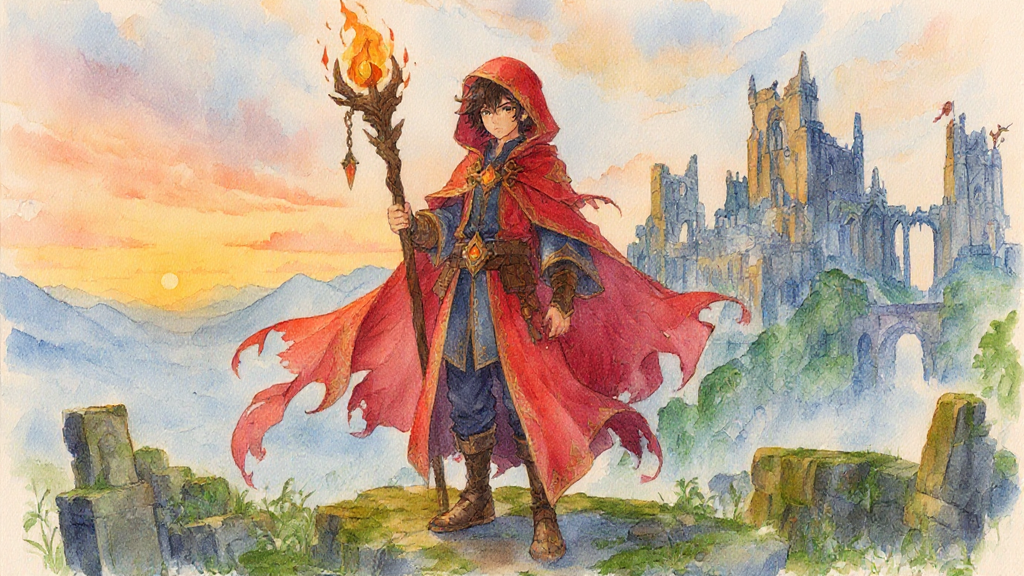
Name the medium and what it does to the surface: "a loose watercolour painting with soft washes and visible paper grain". In our test, "Transform it into a watercolour painting" and a longer "Repaint the image as a loose watercolour... while keeping the pose, face, staff and composition unchanged" gave nearly identical results, with the pose and layout kept in both. Short is fine; add the keep clause when something specific must not drift.
Changing words
Quote the new words and say how they look and where they sit: "Change the text on the sign to 'IRONHEART FORGE' in bold gold capitals". On FLUX.1 Kontext [pro], "Replace 'OPEN' with 'CLOSED'" is the documented form.
Removing something
Removal is an instruction: "Remove the lantern from the table while keeping the rest unchanged".
Several images
Attach the extra images and refer to each by position with a role: "Put the character from image 1 in the armour from image 2".
One change per run
Make one change, check it, then edit the result again. The character stays recognisable through the chain, and a miss is easy to trace.
What to avoid
A short instruction on a busy image
"Make it blue" changes everything that reads as the target's colour or material. On a detailed character, name the target and list what stays.
❌ Make his cloak blue.
✅ Change the young mage's red hooded cloak to a deep blue hooded cloak. Keep his face, pose, staff and glowing ember, the ruined castle and misty valley behind him, and the painterly style exactly the same.
Several unrelated changes at once
Recolouring the cloak, swapping the staff and relighting the scene in one instruction gives the model three chances to move something you wanted kept. Run them one at a time.
Settings that matter
The image you opened is the Source image; add more with Reference image. Aspect ratio sets the output's shape and resolution. On FLUX.1 Kontext [pro] and FLUX.2 [klein] 9B Edit, Seed repeats a run so you can compare one change in the wording, and Guidance scale sets how strictly the instruction is followed. FLUX.2 [klein] 9B Edit adds Negative prompt, Quality and Inference steps.
Prompts to start from
Faction recolour
Change the young mage's red hooded cloak to a deep blue hooded cloak with silver trim. Keep his face, pose, staff and glowing ember, the ruined castle and misty valley behind him, and the painterly style exactly the same.Result |
|---|
 |
Restyle as watercolour
Repaint the image as a loose watercolour painting with soft washes and visible paper grain, while keeping the mage's pose, face, staff, the composition and the camera framing unchanged.Result |
|---|
 |
Use it in Layer
Add the approved image to a session's board.
Click View on the image to open it full-size. The prompt bar sits under it.
Click the model name in the prompt bar and choose FLUX.3 Image, then write the target, the change and what stays.
Click Edit image. The cost shows on the button before you click.
The result opens in the viewer, grouped with the original so you can flip between them. Edit it again for the next change.
Learn more
FLUX.3 Image parameters (Layer API docs): every setting the model accepts.
Single-reference editing (Black Forest Labs): the three-part edit instruction (target, change, what stays), hex recolours, quoted text, and a catalogue of edit types.
Image editing (Black Forest Labs): how FLUX.3 Image edits, naming what stays unchanged, and referring to several inputs by position.
FLUX.1 Kontext image editing (Black Forest Labs): Kontext's object edits, character consistency across repeated edits, and its text replacement syntax.
FLUX.2 image editing (Black Forest Labs): FLUX.2 edits with several reference images, and which FLUX.2 model suits which editing job.
FLUX.1 Kontext [pro] (fal): short Kontext editing tips with worked instructions.