Prompt GPT Image for image editing
Last updated: October 30, 2026
GPT Image edits an approved image from a plain-language instruction and leaves the rest of it alone, including text painted into the art. Pick it to reprice a banner, recolour an outfit, swap a background or fix one detail without redrawing the asset.
Try GPT Image 2.5 Sunburst in Layer
Let the agent write it
You don't have to write any of this yourself. The Layer agent knows how to prompt each model it runs, from the same guidance this page is built on. Attach the image in chat, name the model and say what changes, for example: With GPT Image 2.5 Sunburst, change the price on this banner from 1,200 to 900 and make the button gold; keep everything else. The agent writes the prompt, shows you its plan, and runs it when you approve. Use the rest of this guide when you want to write or adjust the prompt yourself, and see Write a brief for the agent for how to brief it.
When to use it
Use GPT Image for targeted edits to finished art: changing a price, a label or a title in a store banner, recolouring armour or a cloak, putting a character in a new setting, adding or removing a prop, and combining several images ("put the armour from Image 2 on the knight in Image 1"). It holds a character's face, pose and design through the edit.
When an area must stay pixel-for-pixel identical, a prompt edit is not the tool: composite the edited part into the original afterwards. For the basics of editing in the viewer, see Edit an image with a prompt.
Versions on Layer
GPT Image 2.5 Sunburst
The higher-fidelity 2.5 model, and the one this guide's banner edit was made with. In our test it held the untouched parts of the image slightly closer than Flare, a difference you would only notice by measuring. It takes longer per edit.
GPT Image 2.5 Flare
The faster 2.5 model. It made the same banner edit cleanly and kept a character intact through a recolour and a new background. Use it for most edits and move to Sunburst for long editing sessions or when Flare drifts.
GPT Image 2
The previous generation. Given the same background swap, it also kept the character intact. Prefer a 2.5 model for new work.
How to write the prompt
Say what changes, as specifically as you can, then list what must stay:
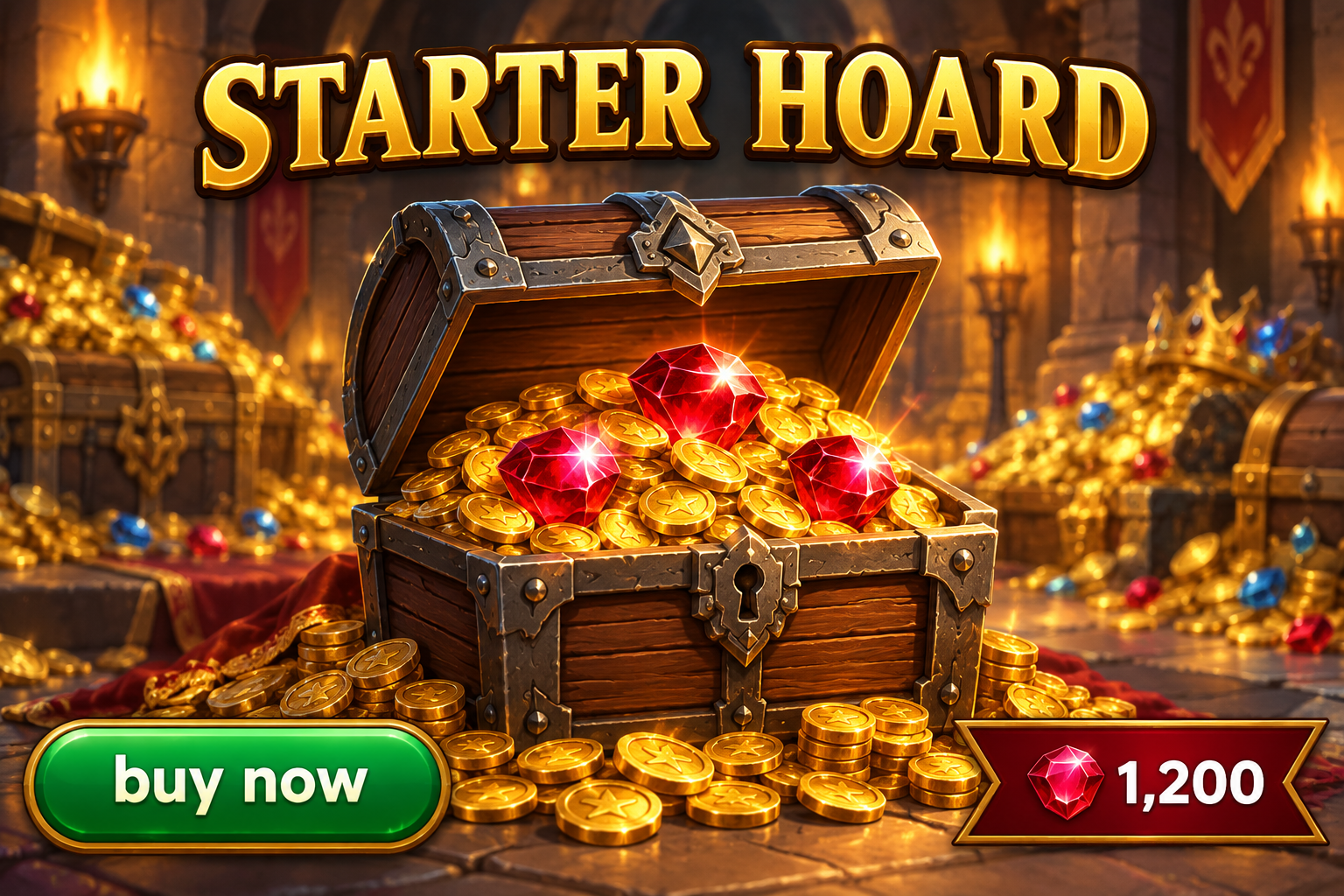
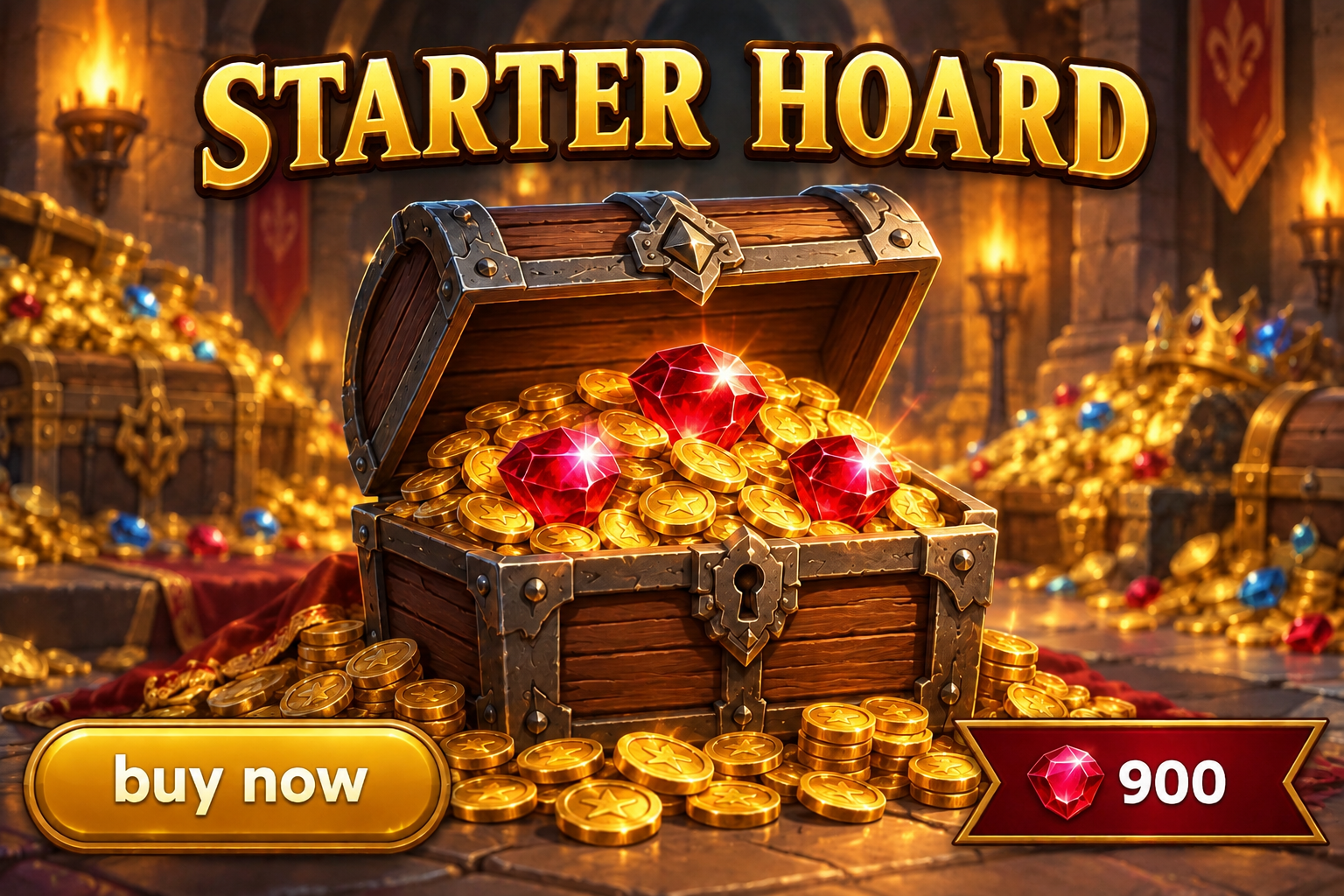
Change only two things: the price on the red plaque from "1,200" to "900", and the button's fill from green to gold, keeping its text "buy now" as it is. Keep everything else exactly the same: the title, the chest, the coins and gems, the gem icon, the background, the lighting, the colours, the framing and the art style.The image already fixes the subject, layout and style, so the prompt is an instruction, not a description. Name the part you are changing in the words you would use to point at it ("the price on the red plaque", "the mage's hooded cloak"), and give concrete targets: colour names, materials, the exact new wording in quotes. That prompt made the edit in the clip above.
What works
Replace text in the art
Quote the old and the new wording: "the price on the red plaque from "1,200" to "900"". In our test the new price took the old one's font, size and plaque, and the title, chest and coins did not move. A bare "make the price 900 and the button gold" did the same on that banner; the quoted form is the one to use when the image has several numbers or labels the model could pick.
Recolour one part
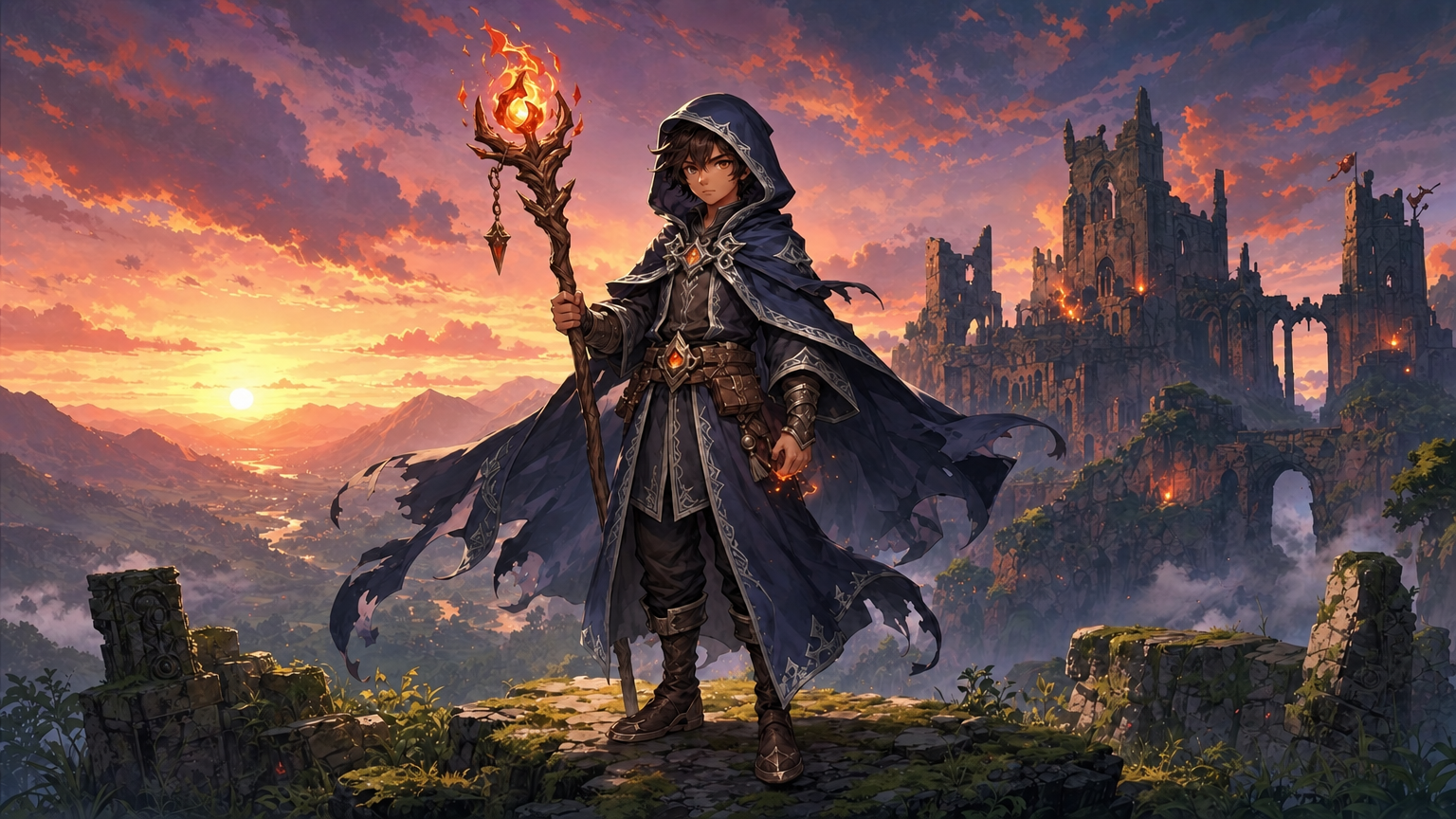
Name the part and the new colour: "Change only the colour of the mage's hooded cloak, from red to deep midnight blue with silver trim." On our fire-mage still, the cloak changed and the face, staff, ember, ledge and sky stayed as they were.
New background, same character
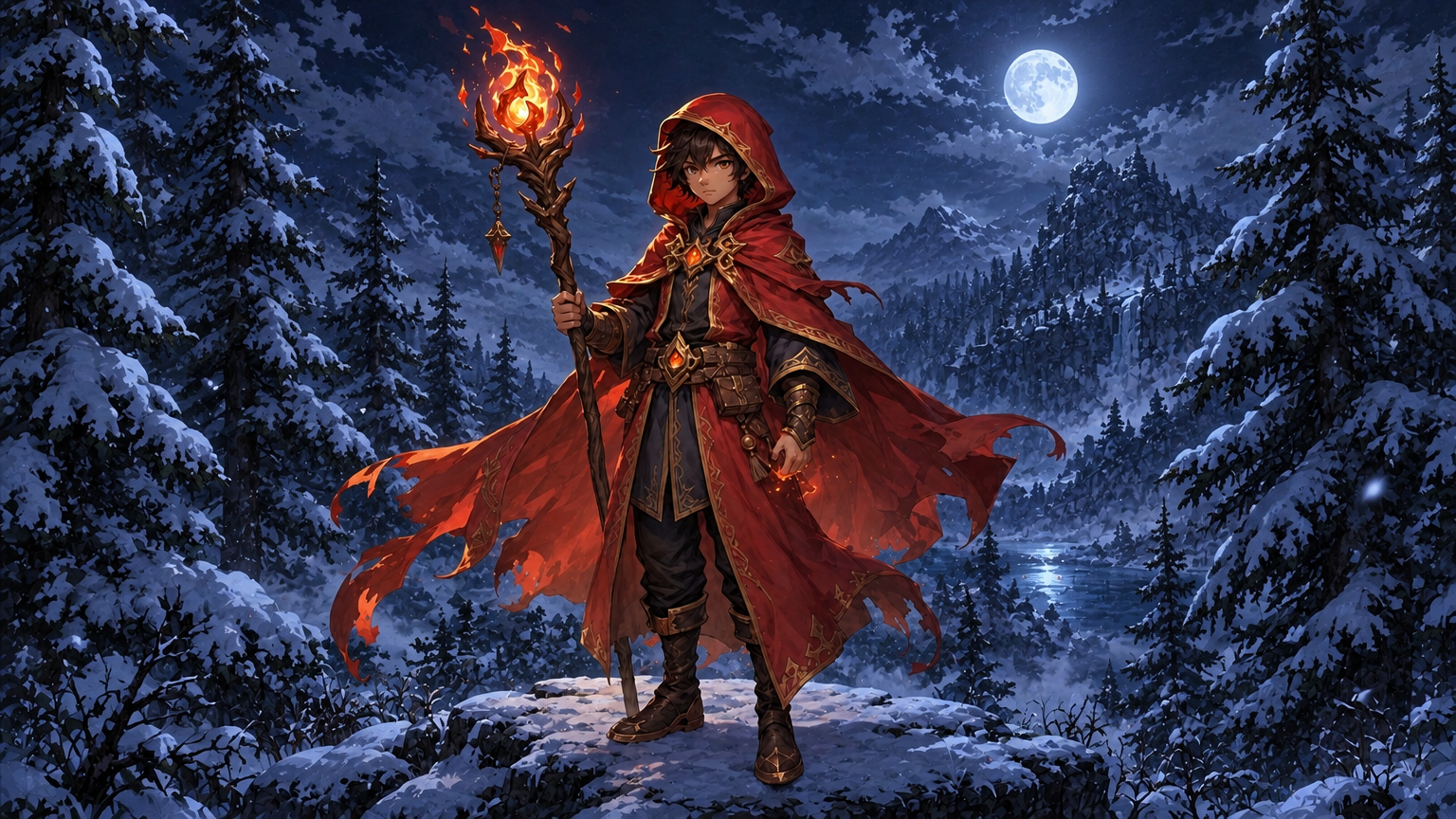
Say what replaces what, then what stays: "Change only the background: replace the ledge, castle, valley and sunset sky with a snowy pine forest at night, under moonlight. Keep the mage exactly the same: his face, hair, red hooded cloak, clothing, staff and glowing ember, his pose, size and position in the frame, and the painterly anime art style." The mage came through in the same pose, size and place.
A keep list for every turn
On a single edit, GPT Image 2.5 leaves the rest of the image alone even without one: we ran "Put him in a snowy pine forest at night" against the full keep-list prompt above, and both kept the mage on-model. Details can still drift over several rounds, so change one thing per turn, feed the result back in, and repeat the keep list (identity, pose, layout, text, lighting, framing, style) every time.
Several images
Attach the extra images with + in the prompt bar, number them and give each a role: "Image 1: the knight. Image 2: the armour to put on him." Then say what moves where.
Transparent cut-outs
When the image has a transparent background, say "keep the background transparent" in every edit prompt so it stays that way.
What to avoid
Expecting exact boundaries
The model decides where your change ends; a mask is a hint, not a hard edge. If a region must stay pixel-identical, composite the approved edit into the original instead of re-prompting.
Mood words instead of targets
"Make it more epic" leaves the model to guess. Write the change you can see: "add a burning banner on the left wall", "deep midnight blue with silver trim".
Stacking many changes in one prompt
Two related changes worked in our banner test. For more, split them into turns, so a miss is easy to spot and undo.
Settings that matter
The edit keeps the source image's size and shape: our 16:9 still came back 16:9. In the prompt bar, the model picker sets the model, and + attaches more images. In the side panel's Prompt edit image tool, Source image holds the image you are editing, Reference image takes the extra images, Quality trades detail for time, and Transparent background keeps the subject on its own.
Prompts to start from
Reprice a store banner
Change only two things: the price on the red plaque from "1,200" to "900", and the button's fill from green to gold, keeping its text "buy now" as it is. Keep everything else exactly the same: the title, the chest, the coins and gems, the gem icon, the background, the lighting, the colours, the framing and the art style.Input | Result |
|---|---|
 |  |
Recolour a character's outfit
Change only the colour of the mage's hooded cloak, from red to deep midnight blue with silver trim. Keep everything else the same: his face, pose and proportions, the staff and its glowing ember, the stone ledge, the castle and valley behind him, the dusk lighting, the framing and the painterly art style.Result |
|---|
 |
New background, same character
Change only the background: replace the ledge, castle, valley and sunset sky with a snowy pine forest at night, under moonlight. Keep the mage exactly the same: his face, hair, red hooded cloak, clothing, staff and glowing ember, his pose, size and position in the frame, and the painterly anime art style.Result |
|---|
 |
Use it in Layer
Add the approved image to a session's board.
Click View on the image to open it full-size. The prompt bar sits under it.
Click the model name in the prompt bar and choose GPT Image 2.5 Sunburst, then write what changes and what must stay.
Click Edit image. The cost shows on the button before you click.
The result joins the image's edit history in the viewer, next to the original. Compare the two, then make the next change as a new turn.
Learn more
GPT Image 2.5 Sunburst parameters (Layer API docs): every setting the model accepts.
GPT Image 2.5 prompting guide (OpenAI): the edit formula ("change only X" plus what to keep), roles for several input images, iterating one change at a time, and when to composite instead of re-prompting.
Image generation models prompting guide (OpenAI Cookbook): worked edit prompts, repeating the keep list on every turn, and keeping a transparent background through an edit.
Image generation (OpenAI): how editing with input images and masks behaves, and why a mask is a hint rather than an exact boundary.
GPT Image 2 image to image (fal): natural-language edits, several input images, and the output size following the input.