Prompt Gemini for text-to-image
Last updated: October 30, 2026
Gemini's image models, which Google also calls Nano Banana, turn a scene written in plain sentences into finished game art, and set short titles and labels in the image spelled correctly. Pick them for key art, environments, logos and UI mock-ups where the layout you describe has to hold.
Try Gemini 3.1 Flash Image in Layer
Let the agent write it
You don't have to write any of this yourself. The Layer agent knows how to prompt each model it runs, from the same guidance this page is built on. Name the model and say what the image is for, for example: Make 16:9 key art with Gemini 3.1 Flash Image: an abandoned dwarven forge in a snowy mountain at dusk, the glowing anvil in the centre, painterly fantasy style. The agent writes the prompt, shows you its plan, and runs it when you approve. Use the rest of this guide when you want to write or adjust the prompt yourself, and see Write a brief for the agent for how to brief it.
When to use it
Use Gemini for images where what goes where matters: environment key art, scene backgrounds for visual novels and menus, title logos, store banners and UI mock-ups with real words on them. It follows a described layout ("the archway on the right", "the anvil at the centre") and it reads plain sentences well, so a brief can go in close to how an art director would say it.
To change an image you already have rather than make a new one, see Edit an image with a prompt. For other models and how to compare them, see Choose a model.
Versions on Layer
Gemini 3.1 Flash Image
The everyday model, and the one this guide's examples were made with. 1K, 2K and 4K output, very wide and very tall shapes (up to 8:1 and 1:8), Thinking and Web search.
Nano Banana 2.1
Google's newer Flash-tier model, with the same controls as Gemini 3.1 Flash Image. The same prompt carries across: in our test both laid out the forge scene the same way, and Nano Banana 2.1 drew a busier hall with a few details nobody asked for.
Gemini 3 Pro Image
For the hardest briefs: dense text, strict brand consistency, and subjects that need real-world knowledge. It has no Thinking control and fewer shapes (21:9 to 9:16), at up to 4K.
Gemini 3.1 Flash-Lite Image
The fastest, lowest-cost tier, for drafts and volume. 1K only, no Web search, and not built for many reference images. In our test it spelled a two-line game logo as cleanly as Gemini 3.1 Flash Image.
How to write the prompt
What it is for, then the subject and what it is doing, then where it is, the framing and light, then the style:
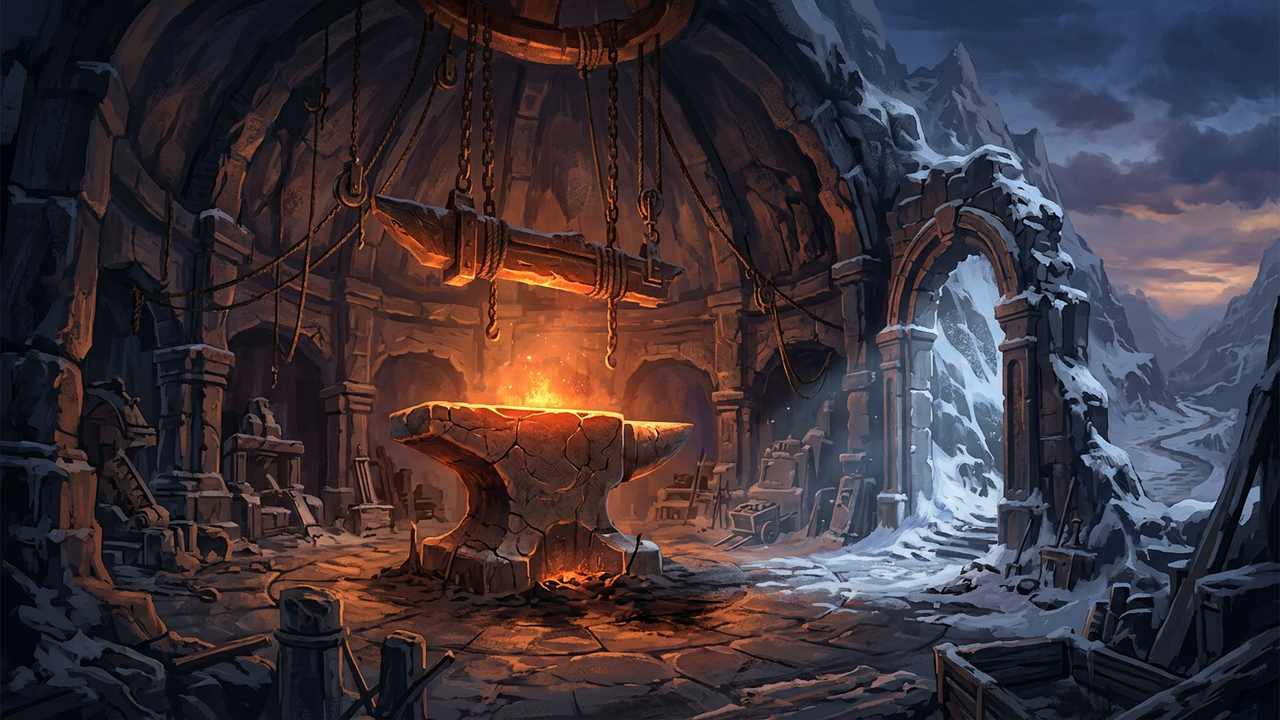
A wide establishing shot of an abandoned dwarven forge carved into the side of a snowy mountain at dusk. A massive stone anvil sits at the centre of a circular hall, its cracked surface still glowing orange from a dying fire, while heavy chains hang from the vaulted ceiling and snow drifts in through a broken archway on the right. Warm firelight from below meets cold blue light from the archway. Stylised painterly fantasy game key art with visible brush strokes and a clear focal point on the anvil.Gemini reads the prompt as a description, not a bag of tags, so sentences that say where things sit and how they relate are the part it follows most closely. That prompt is the one in the clip above.
What works
Sentences, not keywords
Describe the scene the way you would brief an artist. We ran the forge prompt above against the same content as a keyword list ("abandoned dwarven forge, snowy mountain, dusk, massive stone anvil, glowing orange cracks, ... broken archway, wide shot") on the same seed. Both came back as good painterly key art, but only the sentence version put the archway on the right and made the glowing anvil the clear focal point. The list kept the nouns and lost where they go.
Text in quotes, with the lettering described
Put the exact words in quotes and say what the letters look like and where they sit: "The words "EMBER KEEP" are set in heavy, carved serif capitals made of hammered bronze ... Underneath, a thin banner reads "Siege of the North"." In our test both Gemini 3.1 Flash Image and Gemini 3.1 Flash-Lite Image spelled both lines correctly. Settle the wording before you prompt rather than asking the model to invent it, and use a higher resolution for small text.
Specific materials and details
"Ornate elven plate armour, etched with silver leaf patterns, with pauldrons shaped like falcon wings" gives you far more control than "fantasy armour". Spend words on materials, surface and wear, not on adjectives like "beautiful" or "epic".
Camera and light
Shot size, angle and lens steer the composition: wide establishing shot, low-angle shot, macro shot, isometric top-down view. Name the light and where it comes from: "warm firelight from below meets cold blue light from the archway".
Say what the image is for
Open with the job: "Create the title logo for a fantasy strategy game", "A visual novel background of...". Google's guidance is that the stated purpose shapes the whole result, so "a logo for a high-end, minimalist brand" beats "a logo".
Complex scenes step by step
When a scene has many parts, build it in order: "First, a misty forest at dawn. Then, in the foreground, a moss-covered stone altar. Finally, a single glowing sword on the altar."
Give each reference image a job
With images in Reference image, say what each one gives: "use the first image for the character's design and the second for the colour palette".
What to avoid
Counting on a negative prompt
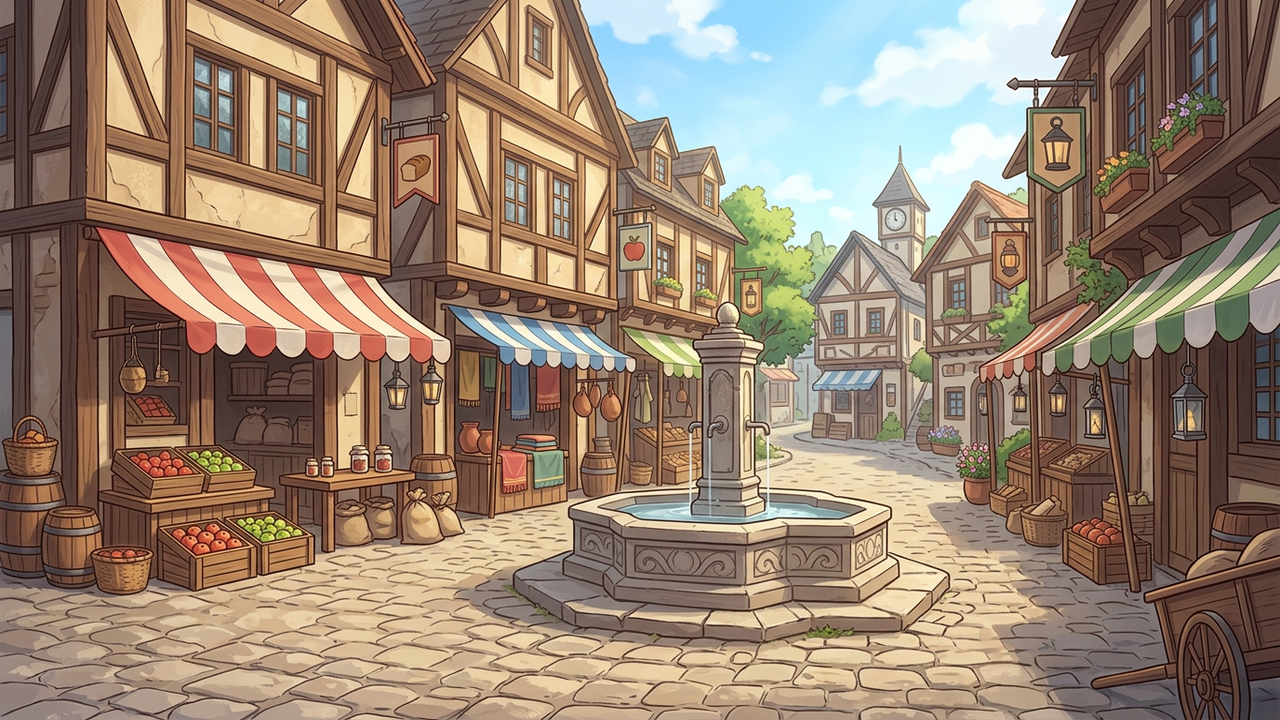
Gemini has no negative prompt. Google's advice is to describe the state you want ("the square is quiet and deserted, every stall unattended") rather than list "no" words. In our test a short "No people, no characters, no animals." also kept a market square empty, so either works for a simple exclusion.
Lettering you did not ask for
Gemini likes to letter things: in our runs it added shop signs to a market square, one of them misspelled, and runes to an anvil. When a surface must stay clean, say so ("plain, unlettered signs"), and check any lettering it adds before you ship the image.
A keyword list
A list of tags carries the nouns but not where they go: on the same seed, our keyword version put the archway on the left and the anvil came out smaller and dimmer.
❌ abandoned dwarven forge, snowy mountain, dusk, massive stone anvil, glowing orange cracks, dying fire, heavy chains, vaulted ceiling, circular hall, snow, broken archway, warm firelight, cold blue light, stylised, painterly, fantasy, game key art, brush strokes, wide shot
✅ A wide establishing shot of an abandoned dwarven forge carved into the side of a snowy mountain at dusk. A massive stone anvil sits at the centre of a circular hall, its cracked surface still glowing orange from a dying fire, while heavy chains hang from the vaulted ceiling and snow drifts in through a broken archway on the right. Warm firelight from below meets cold blue light from the archway. Stylised painterly fantasy game key art with visible brush strokes and a clear focal point on the anvil.
Settings that matter
Aspect ratio sets the shape and the resolution (1K, 2K or 4K) in one control; set it there rather than in the prompt. Thinking lets the model plan before it draws, which helps crowded compositions and small text at the cost of time. Web search grounds the image in current real-world information, rarely needed for game art. Reference image takes images to match a character, object or style. Transparent background returns the image without a background, for props and icons. Seed repeats a result when you change one word at a time.
Prompts to start from
Environment key art
A wide establishing shot of an abandoned dwarven forge carved into the side of a snowy mountain at dusk. A massive stone anvil sits at the centre of a circular hall, its cracked surface still glowing orange from a dying fire, while heavy chains hang from the vaulted ceiling and snow drifts in through a broken archway on the right. Warm firelight from below meets cold blue light from the archway. Stylised painterly fantasy game key art with visible brush strokes and a clear focal point on the anvil.Result |
|---|
 |
Game title logo
Create the title logo for a fantasy strategy game called "EMBER KEEP". The words "EMBER KEEP" are set in heavy, carved serif capitals made of hammered bronze with glowing orange cracks, centred on a plain dark charcoal background. Underneath, a thin banner reads "Siege of the North" in small, clean small-caps. A single crossed hammer and torch emblem sits above the title. Flat, centred composition with even margins, ready to place on a menu screen.Result |
|---|
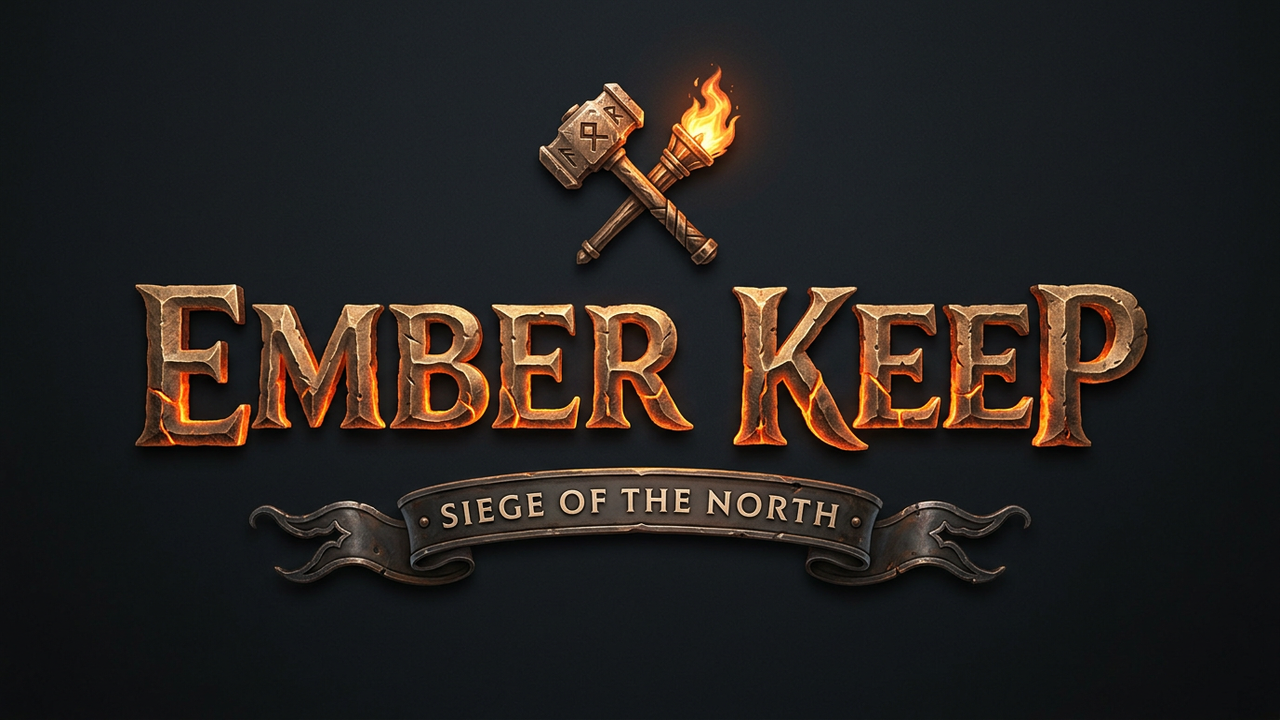 |
Both lines came back spelled correctly; the subtitle came back in full capitals rather than small caps.
Visual novel background
A visual novel background of a small medieval market square at midday, timber-framed shops with striped awnings around a stone fountain, crates of apples and hanging lanterns, soft anime background art with clean lines and flat warm colours, eye-level view. No people, no characters, no animals.Result |
|---|
 |
Use it in Layer
In a session, open Create image from the side panel.
Click the model name at the top of the panel and choose Gemini 3.1 Flash Image.
In the prompt box, describe the scene in sentences: what it is for, the subject, where things sit, the light and the style.
Open Aspect ratio and pick the shape and resolution the art ships at, for example 16:9 at 1K.
Click Create image. The cost shows on the button before you click.
When the image lands on the board, click View to open it full-size. Then change one thing in the prompt at a time and run it again.
Learn more
Gemini 3.1 Flash Image parameters (Layer API docs): every setting the model accepts.
Image generation with Gemini (Nano Banana) (Google AI for Developers): prompt templates for each kind of image, the best-practice list (be specific, give the purpose, semantic negatives, camera language), and each model's limits.
The ultimate Nano Banana prompting guide (Google Cloud): the subject, action, setting, composition, style formula, the text-rendering rules, and the lighting, lens and material vocabulary the models follow.
7 tips to get the most out of Nano Banana Pro (Google): worked examples for camera and lighting detail, quoted text with a described font, and brand work on Gemini 3 Pro Image.
Nano Banana 2.1 text to image (fal): the parameters a host exposes and when higher resolution and thinking help.