Prompt MAI Image for text-to-image
Last updated: October 30, 2026
MAI Image turns a written brief into finished-looking game art, and it sets short text (titles, labels, item names) cleanly inside the image. Pick it for key art with a logo line, labelled UI and icon sheets, and character or prop concepts where you want to control the light.
Let the agent write it
You don't have to write any of this yourself. The Layer agent knows how to prompt each model it runs, from the same guidance this page is built on. Name the model and describe what you need, for example: Make store key art with MAI Image 2.5: our fire mage on a cliff above a burning castle at dusk, with the title EMBERFALL at the top and "Season of Ash" under it, 16:9. The agent writes the prompt, shows you its plan, and runs it when you approve. Use the rest of this guide when you want to write or adjust the prompt yourself, and see Write a brief for the agent for how to brief it.
When to use it
Use MAI Image when the image has to carry words: store and banner key art with a title, inventory and shop screens with item names, posters and signage inside a scene. It also follows detailed briefs well, so it suits character and prop concepts where you want to set the materials and the light yourself.
It renders at about one megapixel, so upscale the keeper for print or very large key art. Once you have an image that is nearly right, fix it with a prompt edit rather than a new prompt; see Edit an image with a prompt. For other image models, see Choose a model.
Versions on Layer
MAI Image 2.5
The version this guide's examples were made with. Use it by default: in our tests it set titles and a grid of six labelled icons as well as Pro did, at a lower cost.
MAI Image 2.5 Pro
Microsoft's highest-fidelity tier, built to keep objects, characters and materials consistent in dense, complex scenes. Use it for a crowded hero image; on a simple layout it is no better than 2.5.
How to write the prompt
What the image is for and its subject, then the exact text in quotes with its placement, then the style and the light:
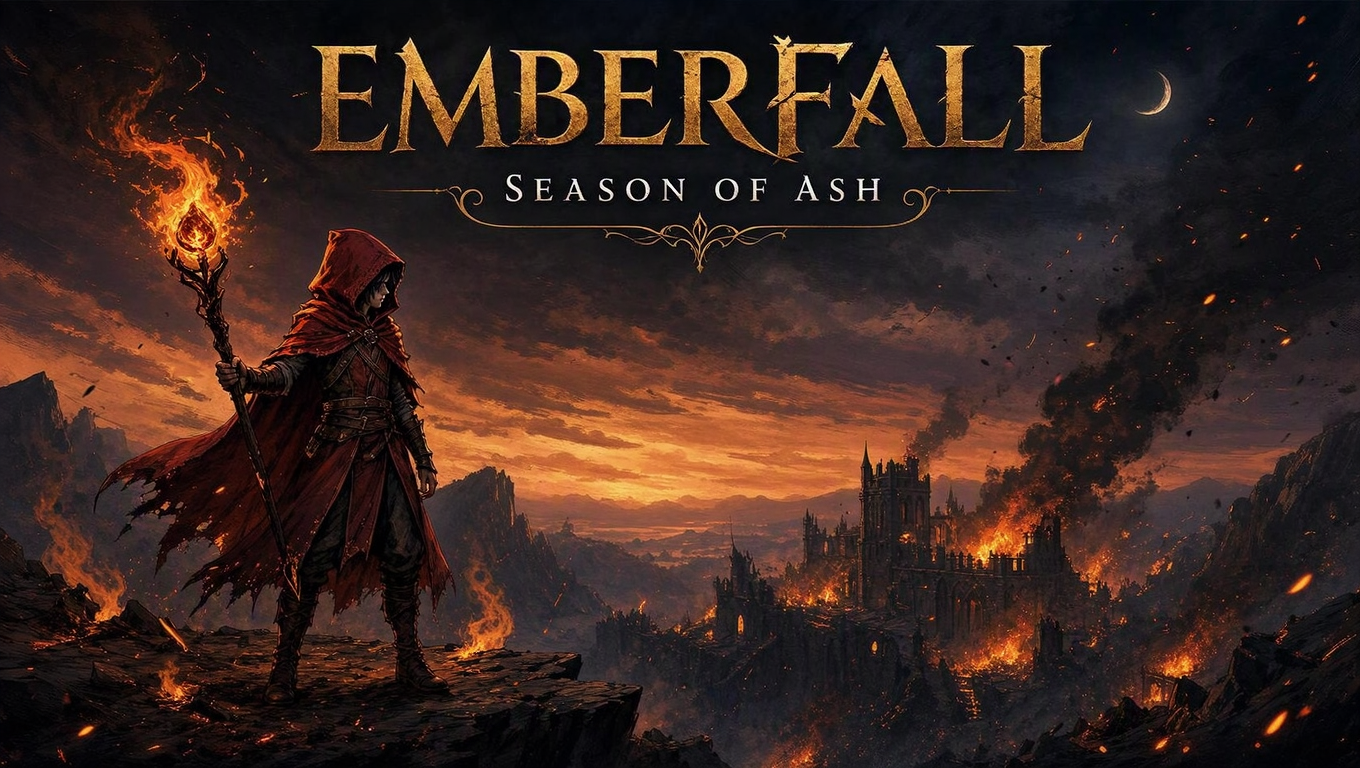
Store page key art for a fantasy mobile game: a young fire mage in a red hooded cloak raises a staff topped with a blazing ember on a cliff above a burning ruined castle at dusk. The title 'EMBERFALL' in large bold gold serif capitals centred at the top, and a smaller line 'Season of Ash' in white beneath it. Stylised painterly game art, warm dusk light, embers drifting in the air.MAI Image reads the whole brief and tries to satisfy every part of it at once, so a full paragraph works. Say each thing you care about in concrete words: the material, the shape, where the light comes from, where the text sits. That prompt is the one in the clip above.
What works
Exact text in quotes, with its place
Put every word that must appear in single quotes, and say where it goes, how big, what colour and what lettering: "The title 'EMBERFALL' in large bold gold serif capitals centred at the top". We ran this against the same scene with the title given only as "a game called Emberfall, subtitle Season of Ash". Both spelled the title right. The quoted prompt gave exactly the two lines asked for, where they were asked for; the other added a PLAY NOW button of its own. Quoting decides what text appears, and where.
Labels across a layout
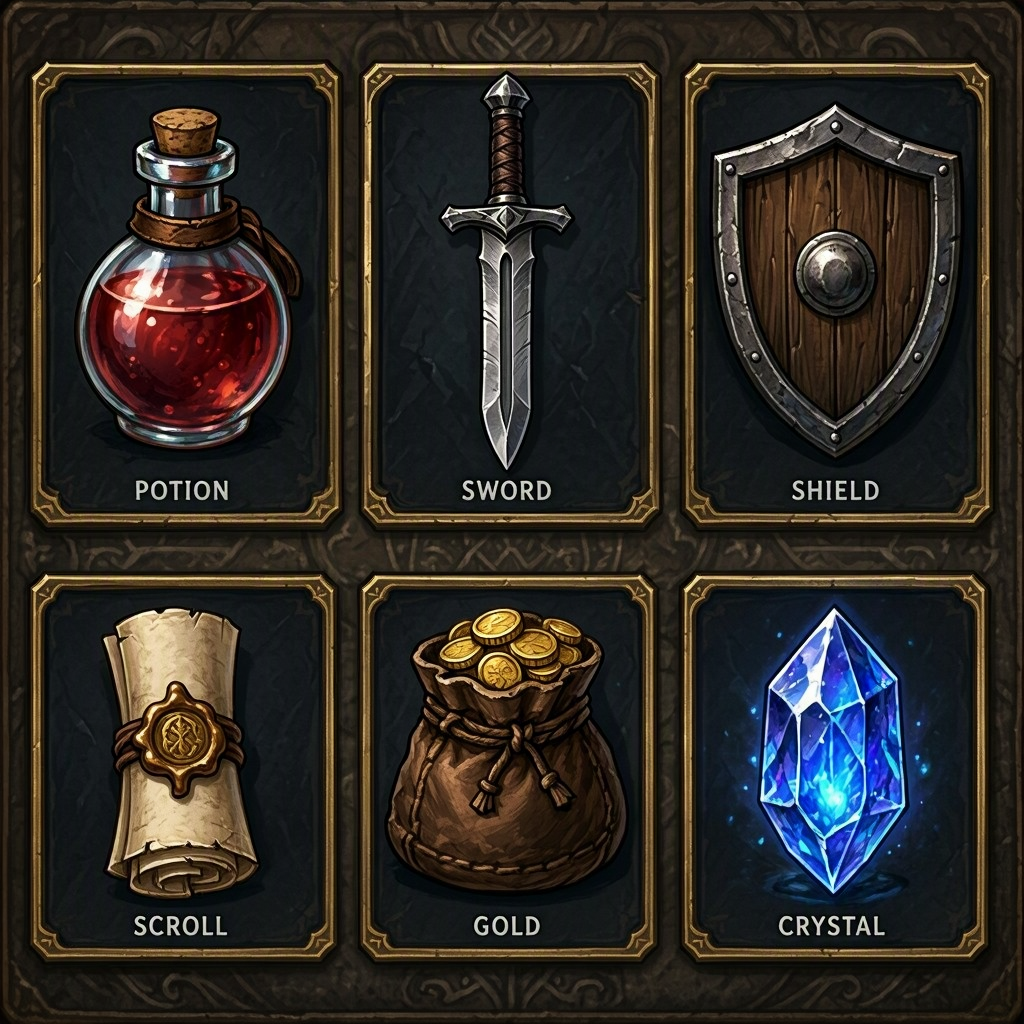
Short labels hold up even when there are many of them. An inventory screen with six item icons and a name under each ('POTION', 'SWORD', 'SHIELD', 'SCROLL', 'GOLD', 'CRYSTAL') came out with every label spelled right and under the right item.
Light as sources and directions
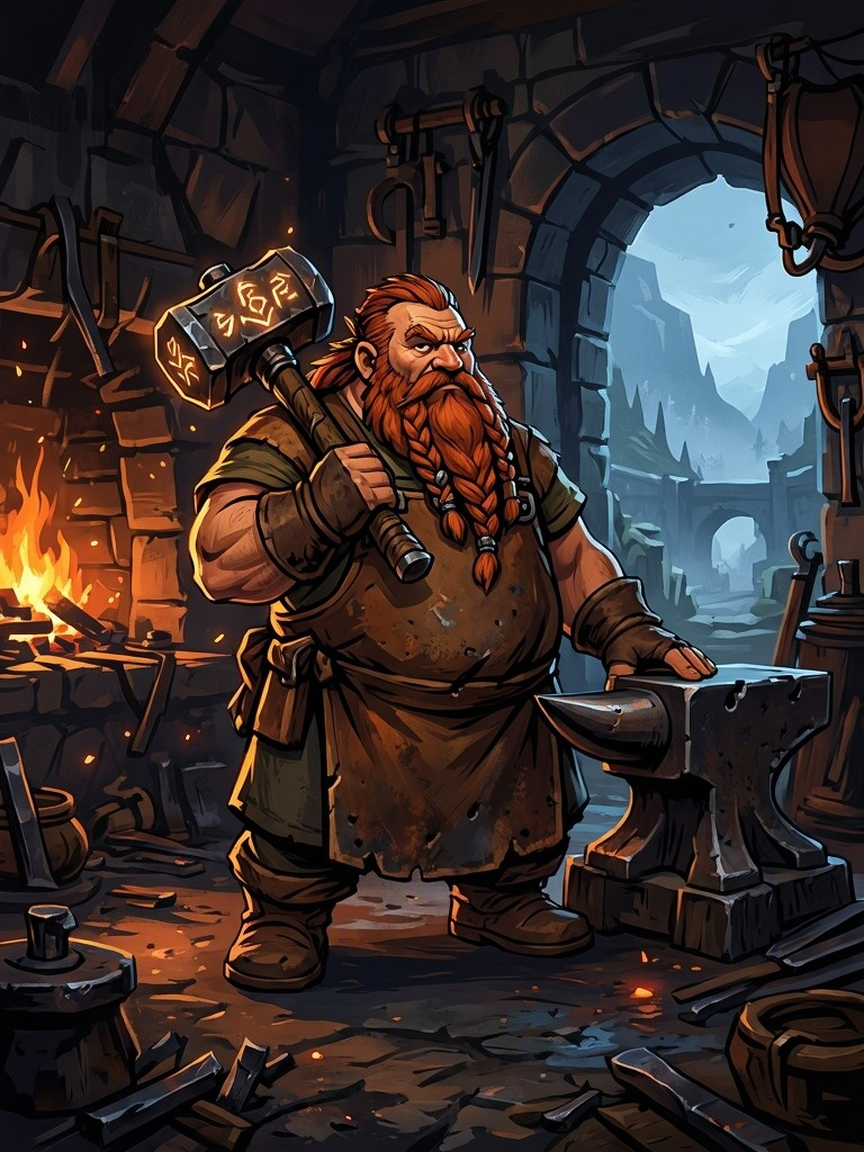
Write where the light comes from and what colour it is: "warm orange light from the forge fire on his left, cool blue daylight from a doorway behind him". In our runs the model placed both sources as written.
Name the style
End with the medium and its look: "stylised hand-painted game art with bold shapes and visible brushwork". MAI Image is built for photorealism, so the style line is what sets game art apart. In our test, the same dwarf blacksmith without it came out as a softer, more rendered digital painting; with it, bold outlines and graphic shading.
Concrete details
Name materials, shapes and finishes rather than categories: "a red health potion in a round glass flask", "a wooden shield with an iron rim", not "a potion" and "a shield".
What to avoid
Format words that carry text
If you name a format that normally has text on it (a character card, a poster, a store page), the model may add text you did not ask for. In our test, "like a mobile RPG character card" turned a character concept into an ornate card with an invented name, a RARE badge and, on a second run, a paragraph of flavour text with a misspelling. Describe the art itself, and when the image must be clean, add "No text, no border, no frame." That removed all of it.
❌ Full-body character concept for a fantasy RPG: a stout dwarf blacksmith in a scorched leather apron, braided red beard, holding a glowing rune hammer over his shoulder, standing beside an anvil. Warm orange light from the forge fire on his left, cool blue daylight from a doorway behind him. Stylised hand-painted game art with bold shapes and visible brushwork, like a mobile RPG character card. Plain dark background.
✅ Full-body character concept for a fantasy RPG: a stout dwarf blacksmith in a scorched leather apron, braided red beard, holding a glowing rune hammer over his shoulder, standing beside an anvil. Warm orange light from the forge fire on his left, cool blue daylight from a doorway behind him. Stylised hand-painted game art with bold shapes and visible brushwork. No text, no border, no frame.
Expecting a negative prompt
MAI Image has no negative prompt. Write exclusions into the prompt as plain sentences: "no text, no watermark, no border".
Counting on the seed
The same prompt with the same Seed gave us two different images, so you cannot use it to get a run back. Keep the image you like, and change it with a prompt edit.
Text left for the model to place
Given the title only as "a game called Emberfall", the model spelled it right but added a PLAY NOW button of its own. Quoting each line and saying where it goes gave exactly the two lines asked for.
❌ Store page key art for a fantasy mobile game called Emberfall, subtitle Season of Ash: a young fire mage in a red hooded cloak raises a staff topped with a blazing ember on a cliff above a burning ruined castle at dusk. Stylised painterly game art, warm dusk light, embers drifting in the air.
✅ Store page key art for a fantasy mobile game: a young fire mage in a red hooded cloak raises a staff topped with a blazing ember on a cliff above a burning ruined castle at dusk. The title 'EMBERFALL' in large bold gold serif capitals centred at the top, and a smaller line 'Season of Ash' in white beneath it. Stylised painterly game art, warm dusk light, embers drifting in the air.
Settings that matter
Aspect ratio sets the shape, from 9:16 to 16:9, all at about one megapixel. Set it to the shape the asset needs before you run, rather than asking for a shape in the prompt. A Source image turns the run into an edit of that image.
Prompts to start from
Store key art with a title
Store page key art for a fantasy mobile game: a young fire mage in a red hooded cloak raises a staff topped with a blazing ember on a cliff above a burning ruined castle at dusk. The title 'EMBERFALL' in large bold gold serif capitals centred at the top, and a smaller line 'Season of Ash' in white beneath it. Stylised painterly game art, warm dusk light, embers drifting in the air.Result |
|---|
 |
Character concept
Full-body character concept for a fantasy RPG: a stout dwarf blacksmith in a scorched leather apron, braided red beard, holding a glowing rune hammer over his shoulder, standing beside an anvil. Warm orange light from the forge fire on his left, cool blue daylight from a doorway behind him. Stylised hand-painted game art with bold shapes and visible brushwork. No text, no border, no frame.Result |
|---|
 |
Labelled inventory icons
A fantasy RPG inventory screen: six item icons in a 3 by 2 grid of dark slate slots with thin gold borders. Top row: a red health potion in a round glass flask, a steel longsword, a wooden shield with an iron rim. Bottom row: a rolled parchment scroll with a wax seal, a leather pouch of gold coins, a blue mana crystal. Under each icon, its name in small white sans-serif capitals: 'POTION', 'SWORD', 'SHIELD', 'SCROLL', 'GOLD', 'CRYSTAL'. Each item lit from the top left with a soft rim light. Stylised hand-painted game icons, clean readable silhouettes.Result |
|---|
 |
Use it in Layer
In a session, open Create image from the side panel.
Click the model name at the top of the panel and choose MAI Image 2.5.
In the prompt box, write the subject, the exact text in quotes with where it sits, then the style and the light.
Open Aspect ratio and pick the shape the asset needs, for example 16:9 for store key art.
Click Create image. The cost shows on the button before you click.
When the image lands on the board, click View to check it full size. Check every word of the text, then change one thing in the prompt at a time and run it again.
Learn more
MAI Image 2.5 parameters (Layer API docs): every setting the model accepts.
MAI-Image-2.5 (Microsoft AI): what the model is built for, where 2.5 improved most (text rendering, cartoon, anime and fantasy art), and its reasoning about lighting, scale and layout.
MAI-Image-2.5-Pro and MAI-Voice-2-Flash (Microsoft AI): what the Pro tier is for (hero imagery, detailed edits, precise in-image text).
Deploy and use MAI image models in Microsoft Foundry (Microsoft Learn): the family's capabilities side by side, what Pro adds, and the output size limit.
MAI Image 2.5 text to image API (fal): the inputs a host exposes for the model.
Best MAI-Image-2.5 prompts for generation and editing (3D AI Studio): worked prompts in subject, style, lighting, composition order, with exact text in single quotes.
MAI-Image-2.5 prompting guide (PromptsLove): specific descriptors over vague ones, lighting as a lever, and stating where text goes, how big and how heavy.