Prompt Muse Image for text-to-image
Last updated: October 30, 2026
Muse Image is Meta's image model. It plans the layout before it draws, so it does what a written brief says: how many objects, in what order, where the title goes, and the exact words on a menu or an item card. Pick it when the composition and the text matter as much as the look.
Let the agent write it
You don't have to write any of this yourself. The Layer agent knows how to prompt each model it runs, from the same guidance this page is built on. Name the model and describe the asset, for example: Make 16:9 key art with Muse Image 1.0: a young fire mage on a ledge at dusk, painterly, with space on the right for our title. The agent writes the brief, shows you its plan, and runs it when you approve. Use the rest of this guide when you want to write or adjust the prompt yourself, and see Write a brief for the agent for how to brief it.
When to use it
Use Muse Image for art with a layout to hit: key art that leaves room for a logo, prop and icon sheets with an exact count and order, title screens, menu mock-ups and item cards with readable text. It follows counts, positions and quoted copy closely.
Every run is different, even with the same prompt, so it is not the model for reproducing one image exactly. For a look that must carry across a whole asset set, attach reference images or a reference set, or try another model from the model picker. For changing an image you already have, see Edit an image with a prompt.
Versions on Layer
Muse Image 1.0
The one version on Layer. It creates images from a prompt and edits them, with up to 10 images as a source and references, in nine shapes from 21:9 to 9:21.
How to write the prompt
What the image is for, then the subject and action, the setting, the lighting, the framing, and the style:
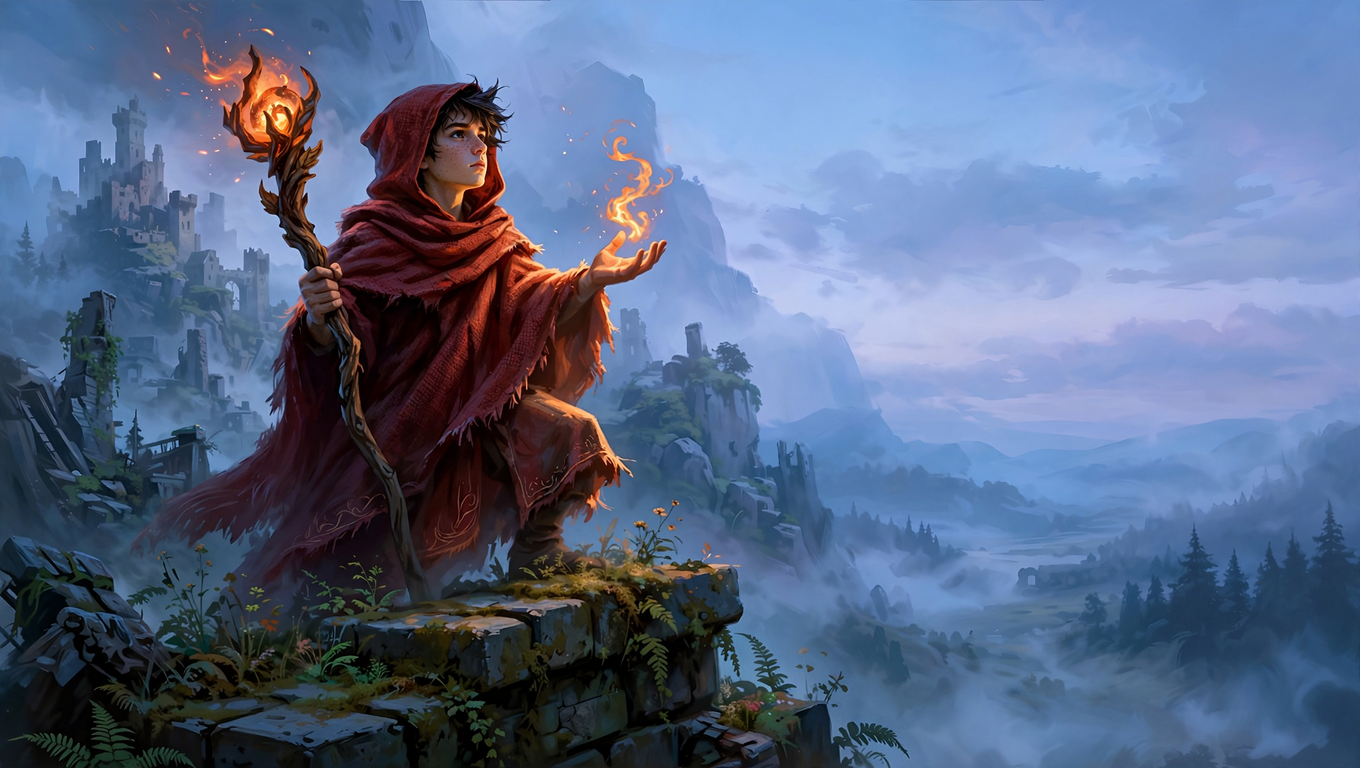
Key art for a fantasy action game. A young fire mage in a red hooded cloak stands on a mossy stone ledge at dusk, holding a carved wooden staff topped with a glowing ember, his free hand raised as a small flame curls above his palm. Behind him a ruined castle rises out of a misty valley. Warm orange light from the ember rims his face and cloak against the cool blue dusk. Low three-quarter angle, the mage slightly left of centre, clear sky on the right for a title. Stylised painterly game art with soft brush texture, warm and cool palette.Muse reads the whole brief and plans the picture from it before it renders, so the opening line ("Key art for...", "A prop sheet for...") sets what kind of image it composes, and every placement you state is one it does not have to guess. That prompt is the one in the clip above.
What works
A brief, not a keyword list
Write full sentences. We ran the key art brief above against the same content as a tag list ("fire mage, red hooded cloak, staff, glowing ember, ... masterpiece, highly detailed, 8k"). Both looked good. The brief got what it asked for: a young mage left of centre and open sky on the right for the title. The tag list chose for itself: an older, darker figure filling half the frame and ruins crowding the space a title would need.
Counts, order and positions
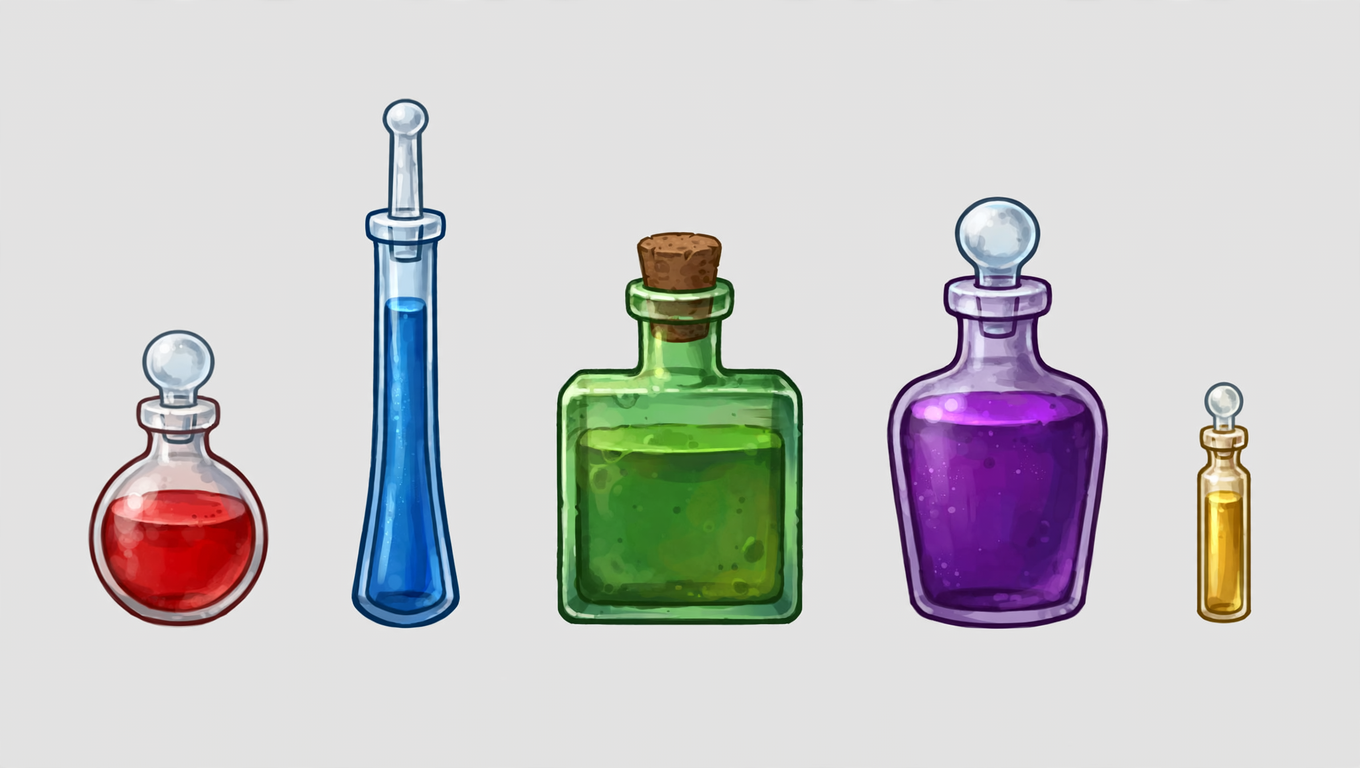
Say how many, in what order and where: "Five potion bottles stand in a single row, evenly spaced, from left to right: a small round red health potion, a tall thin blue mana potion, a square green poison flask, a stout purple elixir, and a tiny gold vial. Only the third bottle has a cork stopper." In our test, all five came back in that order, with the cork on the third bottle only.
Space for a title or UI
If the art needs room for a logo, buttons or a HUD, say where: "clear sky on the right for a title", "keep the lower third empty". Muse plans around it.
Text in quotes, with a type direction
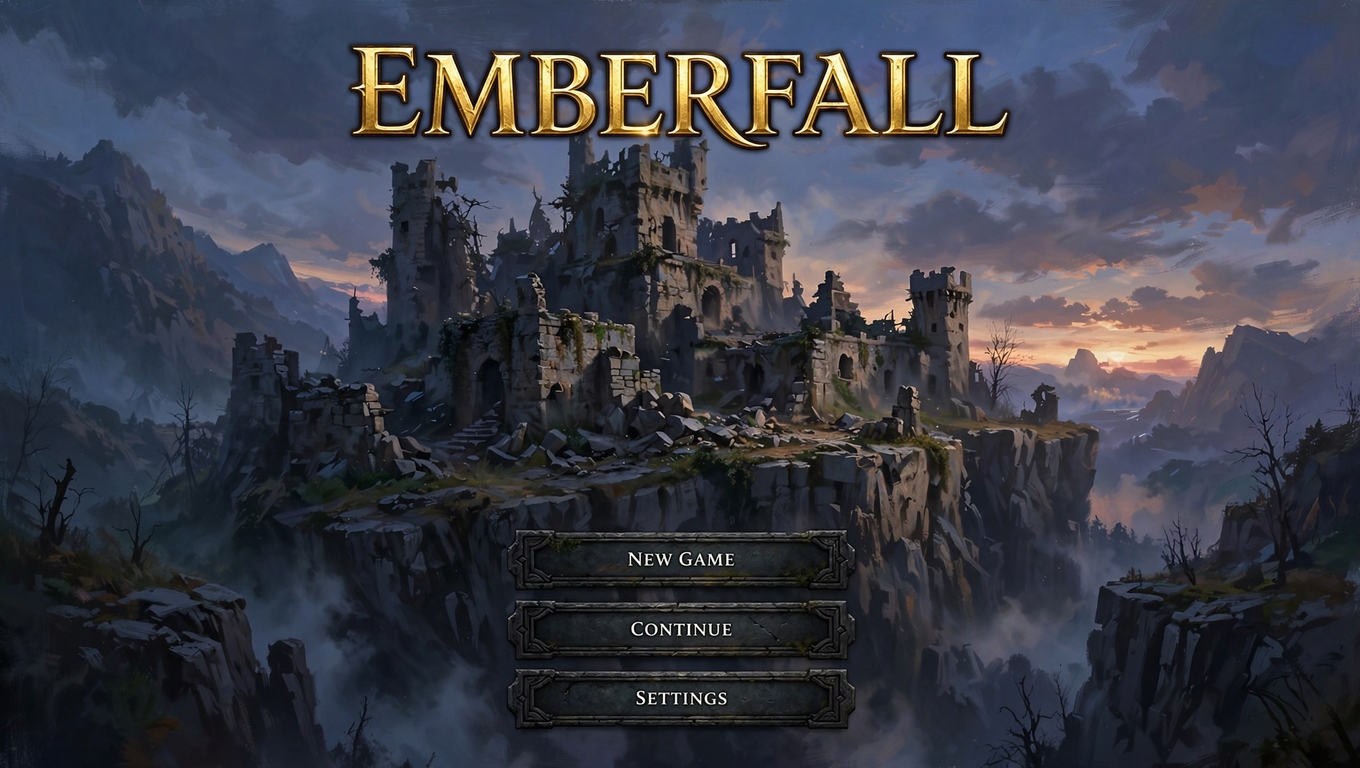
Put the exact words in double quotes and say how they look and where they go: The logo "EMBERFALL" is centred in the upper third in heavy gold serif capitals. Write numbers and prices into the quoted text yourself, and keep each price in the same quoted string as its item. In our tests, every word came out spelled right, from a one-word logo to a 37-word item description, in the place and colour asked for.
Pin what must stay the same
Muse has no way to repeat a run, so the prompt is what holds a design together. When we ran the key art brief twice, the mage's face, cloak trim and staff changed, but everything the prompt stated stayed: the pose, the framing, the flame, the castle and the open sky. Write down every detail you need to keep, and repeat the same style words in every prompt of a series.
Few adjectives, no quality tags
Two or three adjectives per element is enough. A prompt stacked with descriptors and tags such as "masterpiece, 8k" tends to flatten into generic art; if results look bland, cut words rather than add them.
Build it in passes
Get the subject right first, then add props and action, then lighting, framing and style. Change one thing per run so you know what each change did.
What to avoid
Counting on the seed
The Seed field does not make a Muse run repeatable: the same prompt and seed gave us two different images. Create a few images and keep the best, and put what must stay fixed in the prompt.
Trusting letter case
Spelling held in our tests, but case did not: "EMBERFALL" in quotes came back as "Emberfall", and an item card set all its lines in lower case. Ask for the case in the type direction ("in capitals") and check it before you use the image; re-run when the copy comes out wrong.
Expecting a negative prompt
There is no negative prompt. Write exclusions as plain sentences ("No other text.", "no shadows on the background"), and make sure no two clauses contradict each other.
Cropping instead of choosing a shape
Each shape is a different picture, not a crop: the same brief at 9:16 gave us a new, full-height composition. Set Aspect ratio to the shape the art ships in before you create it, rather than cropping a square later.
A keyword list instead of a brief
A tag list looks fine but leaves Muse to make its own choices: ours came back with an older, darker mage filling half the frame and ruins crowding the space a title needed, where the brief got the young mage left of centre and open sky on the right.
❌ fire mage, red hooded cloak, staff, glowing ember, flame in hand, stone ledge, ruined castle, misty valley, dusk, rim light, painterly, fantasy, game art, key art, masterpiece, highly detailed, 8k
✅ Key art for a fantasy action game. A young fire mage in a red hooded cloak stands on a mossy stone ledge at dusk, holding a carved wooden staff topped with a glowing ember, his free hand raised as a small flame curls above his palm. Behind him a ruined castle rises out of a misty valley. Warm orange light from the ember rims his face and cloak against the cool blue dusk. Low three-quarter angle, the mage slightly left of centre, clear sky on the right for a title. Stylised painterly game art with soft brush texture, warm and cool palette.
Settings that matter
Aspect ratio sets the shape, from 21:9 to 9:21; Muse composes for it. Reference image takes images that set a character, prop or style for the model to follow. Seed does not repeat a run on this model.
Prompts to start from
Key art with room for a title
Key art for a fantasy action game. A young fire mage in a red hooded cloak stands on a mossy stone ledge at dusk, holding a carved wooden staff topped with a glowing ember, his free hand raised as a small flame curls above his palm. Behind him a ruined castle rises out of a misty valley. Warm orange light from the ember rims his face and cloak against the cool blue dusk. Low three-quarter angle, the mage slightly left of centre, clear sky on the right for a title. Stylised painterly game art with soft brush texture, warm and cool palette.Result |
|---|
 |
Prop sheet
A prop sheet for a fantasy RPG inventory. Five potion bottles stand in a single row on a plain light grey background, evenly spaced with equal gaps between them, from left to right: a small round red health potion, a tall thin blue mana potion, a square green poison flask, a stout purple elixir, and a tiny gold vial. Only the third bottle, the green flask, has a cork stopper; all the others have glass stoppers. Even soft studio light from above, no shadows on the background. Front view, all five bottles fully in frame. Stylised hand-painted game art, clean edges.Result |
|---|
 |
Title screen with menu text
A title screen for a fantasy action game. A ruined castle on a cliff at dusk, painterly game art. The game's logo "EMBERFALL" is centred in the upper third in heavy gold serif capitals with a thin dark outline. Below the castle, three stacked menu buttons in dark stone frames read "NEW GAME", "CONTINUE" and "SETTINGS" in small white uppercase. No other text.Result |
|---|
 |
Use it in Layer
In a session, open Create image from the side panel.
Click the model name at the top of the panel and choose Muse Image 1.0.
In the prompt box, write the brief: what the image is for, the subject, the setting, the light, the framing and the style.
Click Aspect ratio and choose the shape the art ships in.
Click Create image. The cost shows on the button before you click.
When the image lands on the board, click View to open it full size. Check every placement and every word of text, then change one thing in the prompt at a time and run it again.
Learn more
Muse Image 1.0 parameters (Layer API docs): every setting the model accepts.
Image generation with Muse Image (Meta Model API): the model's parameters and limits, and how it plans layouts and looks up references before it draws.
Muse Image: generate, edit, and compose images on Meta Model API (Meta for Developers): Meta's own worked prompts, and its notes on text rendering, consistency across a series, and why every run differs.
Prompting Muse Image (Runware): the brief structure clause by clause, counts and positions, choosing a shape, and working without a seed.
Text in images with Muse Image (Runware): quoting copy, type direction, and keeping prices with their items.
Muse Image text to image (fal): the endpoint Layer runs, with a labelled-section example prompt.