Prompt Seedream for image editing
Last updated: October 30, 2026
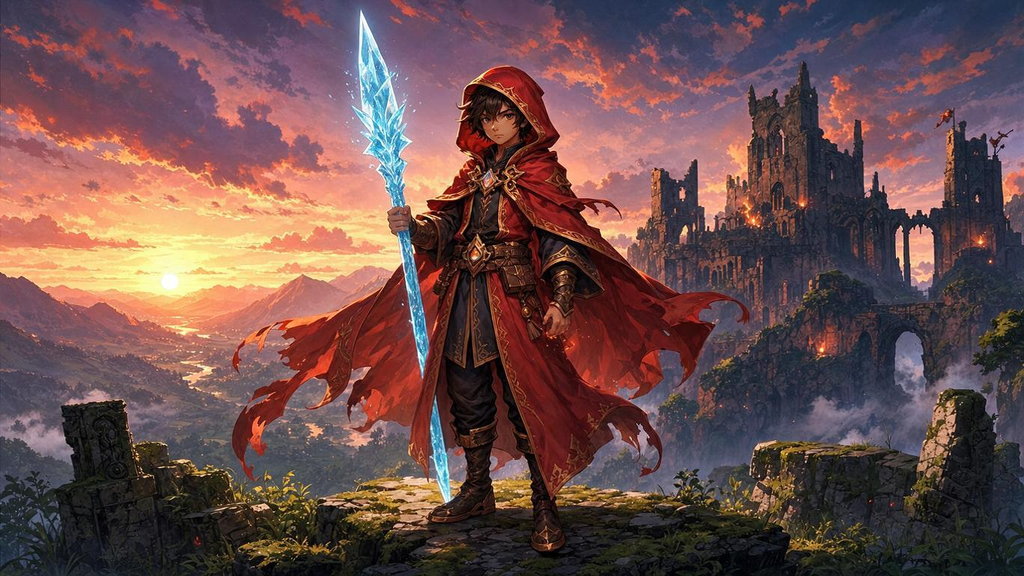
Seedream changes the one thing you name in an approved image and leaves the rest of the frame where it was. Pick it for prop swaps, faction recolours and pulling an element in from another image, when the character must stay on-model.
Let the agent write it
You don't have to write any of this yourself. The Layer agent knows how to prompt each model it runs, from the same guidance this page is built on. Attach the image in chat, name the model and say what changes, for example: With Seedream 5.0 Pro, swap the mage's staff for a glowing ice-blue crystal spear and keep everything else as it is. The agent writes the prompt, shows you its plan, and runs it when you approve. Use the rest of this guide when you want to write or adjust the prompt yourself, and see Write a brief for the agent for how to brief it.
When to use it
Use Seedream for targeted edits to finished art: replace a weapon, recolour a costume for a variant, add or remove a prop, or take an object from a second image and put it in the first. In our tests a clearly named change left the character, the background and the painted style intact.
For a whole new image, see Create images. For the other editing models on Layer, see Choose a model.
Versions on Layer
Seedream 5.0 Pro
The quality tier, and the one this guide's examples were made with. It also reads marks drawn on the image and coordinates written into the prompt (see below).
Seedream 5.0 Flash
The same inputs as Pro, several times faster and cheaper. In our test it made the same staff swap with the mage, the cloak and the sunset intact, with a slightly softer frame. Use it to try variants, then make the keeper on Pro.
Seedream 5.0 Lite
The cost tier of the 5.0 line. It takes the same plain-language edits; it does not read coordinates in the prompt.
How to write the prompt
The action (add, remove, replace, change), the exact target, the new thing, then what stays:
Replace the mage's wooden staff with a tall crystal spear that glows ice blue, keeping his pose, face, red cloak, the background and the painterly style unchanged.Seedream treats the image as parts it can address. The more exactly you name the part, the less of the rest it touches. That prompt is the one in the clip above.
What works
Name the exact target
Say which thing changes and how: "Change the mage's red cloak to deep navy blue with silver trim". We ran that against "Make it blue." on the same image and seed. The specific prompt recoloured only the cloak and hood. "Make it blue" repainted the whole picture: the sunset became a starry night with an aurora, the staff's ember turned into a blue flame, and the castle lights went blue.
Say what stays
End with what must not change: "keeping his pose, face, red cloak, the background and the painterly style unchanged". In our test, a narrow, clearly named swap held the rest of the frame with or without this clause, so it costs nothing. The maker recommends it, and it matters more as the edit gets broader.
One of four actions
Add, remove, replace or change. Each works from one short, unambiguous sentence: "Remove the mage's hood", "Add a small fire salamander curled at his feet".
Several images: Image 1, Image 2
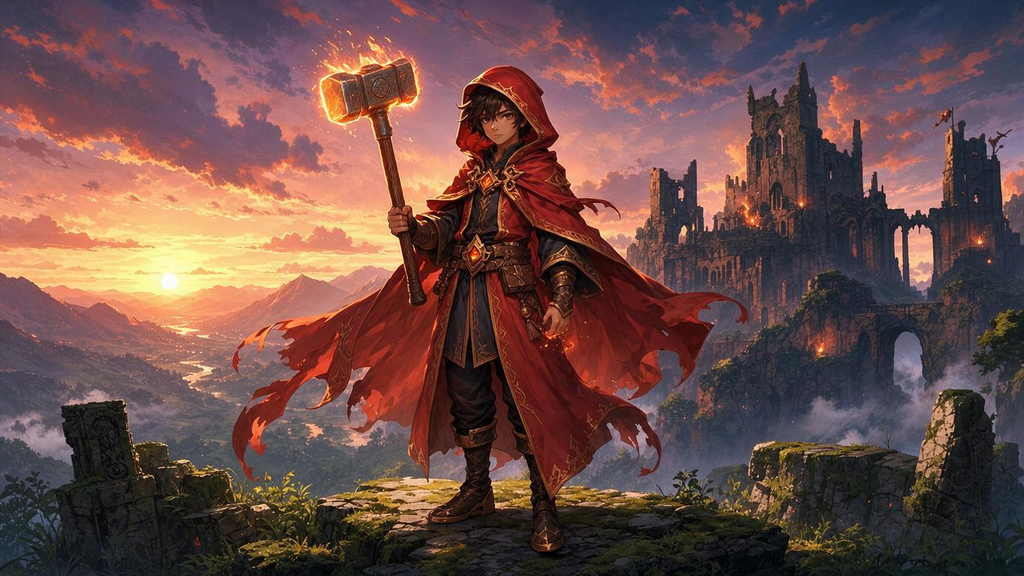
Attach a second image with Add to prompt, then refer to the images by number and say what to take from each: Replace the staff in Image 1 with the glowing hammer the dwarf holds in Image 2. In our test, with two images, a looser "the hammer from the other picture" also worked, but the numbered prompt copied the dwarf's hammer more closely. Name them every time; it matters more with each image you add.
Mark the spot on the image
When a spot is hard to describe, draw on the image before you bring it in: a coloured box, a circle, an arrow or a scribble. Give one instruction per mark and ask for the marks to go: "Add a stack of books in the red box and a lantern in the blue box. Remove all marks. Keep the composition unchanged."
Coordinates in the prompt
Seedream 5.0 Pro and Flash also read positions written into the prompt, on a 0 to 999 grid across the image from the top-left corner: Replace the object at <point>520 460</point> with a crown, or a box, <bbox>120 180 640 760</bbox>.
Teach a change with a pair
For a change that is hard to put into words, attach a before and after pair and ask for the same change on your image.
What to avoid
Vague pronouns
"Make it blue", "put that one in pink". The model decides what "it" is, and in our test it decided it was the whole image.
❌ Make it blue.
✅ Change the mage's red cloak to deep navy blue with silver trim, keeping everything else unchanged.
Leaving the marks in
When you mark up the image, end the prompt with "Remove all marks", as the maker's own examples do, so the boxes and scribbles are not painted into the result.
Settings that matter
The model picker on the prompt bar under the image chooses the Seedream version. Add to prompt attaches more images from your library, such as a prop or a style to take from. The result keeps the shape of the source image.
Prompts to start from
Swap a prop
Replace the mage's wooden staff with a tall crystal spear that glows ice blue, keeping his pose, face, red cloak, the background and the painterly style unchanged.Result |
|---|
 |
Recolour for a variant
Change the mage's red cloak to deep navy blue with silver trim, keeping everything else unchanged.Result |
|---|
 |
Take a prop from another image
Replace the staff in Image 1 with the glowing hammer the dwarf holds in Image 2, held the same way in the mage's right hand. Keep the mage, his pose, his red cloak, the background and the painterly style of Image 1 unchanged.Result |
|---|
 |
Use it in Layer
Add the approved image to a session's board.
Click View on the image to open it full-size. The prompt bar sits under the image.
Click the model name on the prompt bar and choose Seedream 5.0 Pro, then write the change and what must stay.
Click Edit image.
The edit runs in the viewer, and the result joins the original in its edit group. Compare the two at full size, then make the next change from the result.
Learn more
Seedream 5.0 Pro parameters (Layer API docs): every setting the model accepts.
Seedream 4.0-4.5 prompt guide (BytePlus ModelArk): the maker's editing rules with worked examples: add, remove, replace and modify; name the target and what stays; marks drawn on the image; several input images.
Seedream 5.0 pro / flash tutorial (BytePlus ModelArk): how Seedream 5.0 Pro and Flash edit inside hand-drawn marks and boxes, with the exact wording of a marked-up edit.
Seedream 5.0 pro / flash interactive editing guide (BytePlus ModelArk): pointing an edit at a spot with point and box coordinates written into the prompt, and moving a subject from one image into another.
How to use Seedream 5.0 Pro (fal): one instruction per coloured box, naming the single thing that changes, and compositing from several reference plates.
How to prompt Seedream 5.0 (Replicate): edit phrasing that keeps the rest of the image, and teaching a hard-to-describe change with a before and after pair.