Prompt Gemini for image editing
Last updated: October 30, 2026
Gemini's image models (the community calls them Nano Banana) change an image you already have from one plain instruction: a recolour, an added prop, a new style. Pick them when the art is approved and you need a variant that leaves everything else alone.
Try Gemini 3.1 Flash Image in Layer
Let the agent write it
You don't have to write any of this yourself. The Layer agent knows how to prompt each model it runs, from the same guidance this page is built on. Attach the image in chat, name the model and say what should change, for example: Edit this with Gemini 3.1 Flash Image: make the mage's cloak midnight blue with silver trim for the rival faction, and keep everything else as it is. The agent writes the prompt, shows you its plan, and runs it when you approve. Use the rest of this guide when you want to write or adjust the prompt yourself, and see Write a brief for the agent for how to brief it.
When to use it
Use Gemini for targeted changes to finished art: faction and seasonal recolours, adding or removing a prop or a companion, swapping an outfit, restyling a scene (pixel art, watercolour) while it keeps its layout, and combining a character with items from other images. You describe the change in words; there is nothing to mask or paint.
For the editing flow itself, see Edit an image with a prompt. To make a new image from nothing, see Create images.
Versions on Layer
Gemini 3.1 Flash Image
The everyday editing model, and the one this guide's examples were made with. It takes extra reference images alongside the one you are editing.
Nano Banana 2.1
Google's newer Flash-tier model, with the same inputs. The same edit prompt carries across: in our test it recoloured the mage's cloak almost exactly as Gemini 3.1 Flash Image did.
Gemini 3 Pro Image
For the hardest edits: lettering and translation, strict brand consistency, and subjects that need real-world knowledge.
Gemini 3.1 Flash-Lite Image
The fastest, lowest-cost tier, for quick single changes. It is not built for many reference images or long chains of edits; use one of the models above for those.
How to write the prompt
The change, scoped with "only", then everything that must stay:
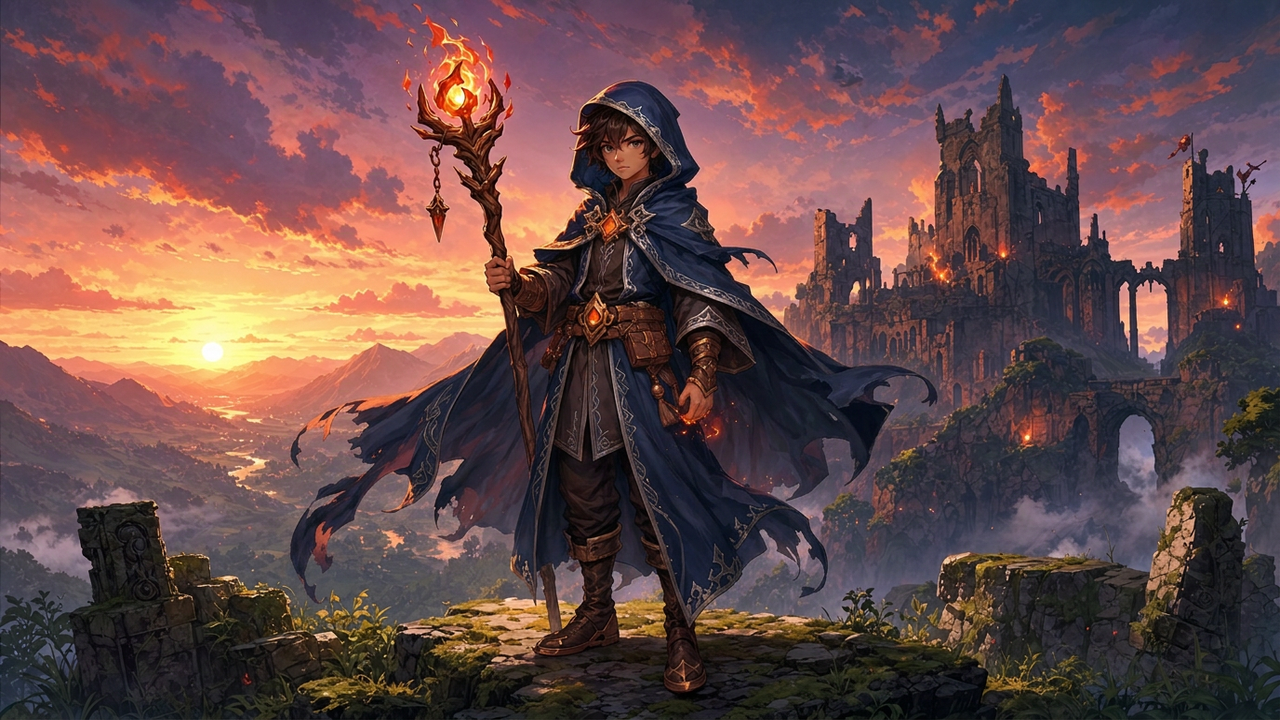
Using the provided image, change only the mage's red cloak and hood to deep midnight blue with silver trim. Keep everything else exactly the same: his face, pose, staff and its flame, the ruined castle, the sunset sky and the painterly style.Gemini redraws the whole picture to make an edit, so it decides what else may change from your words. Naming the one change and listing what stays is what keeps the rest on-model. That prompt is the one in the clip above.
What works
Change only one thing, and list what stays
We ran the prompt above against a bare "Make his cloak deep blue with silver trim." on the same image and seed. Both recoloured the cloak and kept the pose and the scene. The bare instruction also turned the orange gems sapphire and made the boots, bracers and buckle silver to match. The scoped prompt kept the gems, boots and bracers exactly as they were.
Place additions in frame terms
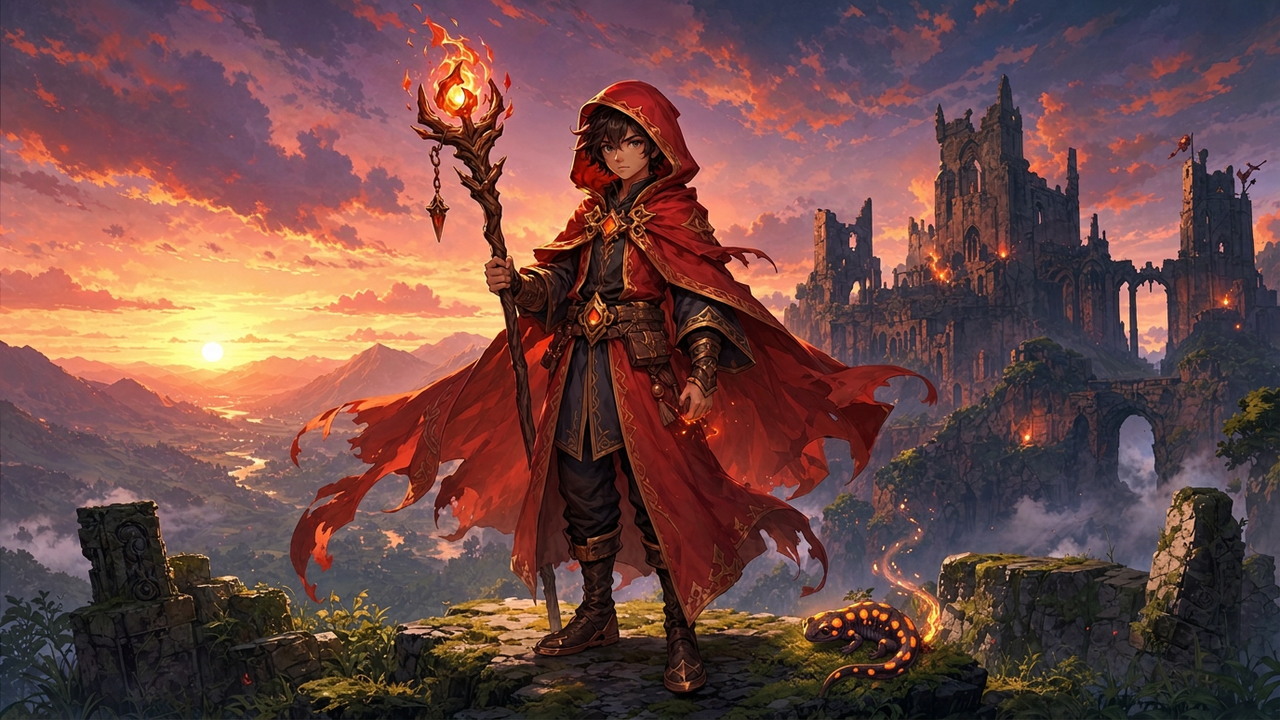
Say where on the picture something goes: "on the mossy stone just to the right of the mage's feet, in the lower right of the frame". In our test, "beside the mage's left boot" put a salamander on the far left of the frame, reading left from the viewer's side, away from his feet. The frame-terms version put it right where we meant.
Restyle, and keep the layout
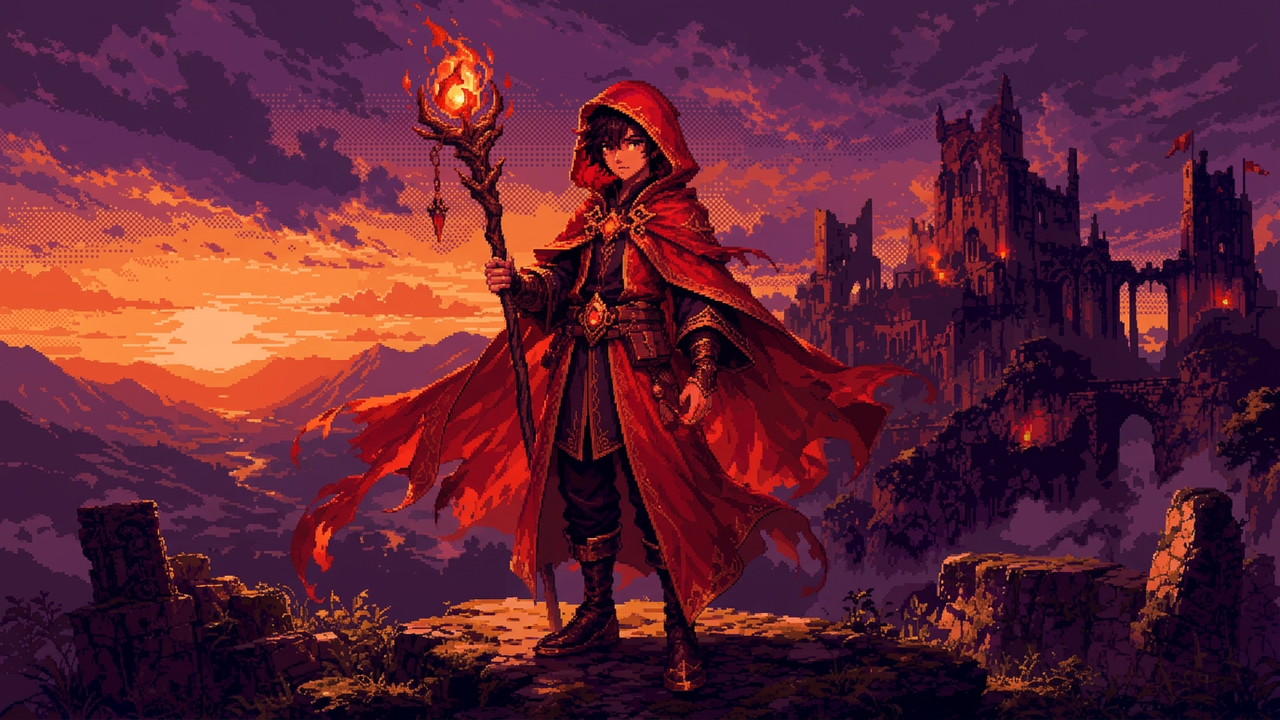
Name the target style and what makes it that style, then say what must keep its place: "Transform the provided image into 32-bit pixel art ... Preserve the original composition: the mage's pose, his staff and its flame, the ruined castle on the right." Our run kept the pose, staff and castle where they were and redrew the scene in a limited warm palette with dithering in the sky.
Protect the details that matter
For a face, a logo or a signature prop, describe it and say it must remain completely unchanged: "Keep the mage's face and the carved staff completely unchanged."
One change per instruction
Make one edit, check it, then ask for the next: "Keep everything the same, but make the sky darker." Google recommends small conversational follow-ups over one long list of changes.
Give each reference image a job
When you attach more images with Add to prompt, refer to each by position and say what it gives: "Put the helmet from the second image on the knight in the first image."
Lead with the verb
Start with the operation: change, add, remove, replace, transform.
What to avoid
Expecting untouched pixels
Because the whole frame is redrawn, the parts you did not ask to change come back very close but not pixel-identical: fine texture in the sky and stone shifts slightly. Compare the result with the original at full size before it replaces a shipped asset.
Left and right from the character's side
"His left hand" or "her right shoulder" can land on the wrong side. Describe position as the viewer sees it, in the frame.
❌ Using the provided image, add a small fire salamander familiar curled on the mossy stone beside the mage's left boot, its back glowing with ember-orange spots and a faint trail of sparks rising from its tail. Match the painterly style and the warm sunset light of the scene. Keep the mage, his staff and the background exactly as they are.
✅ Using the provided image, add a small fire salamander familiar curled on the mossy stone just to the right of the mage's feet, in the lower right of the frame, its back glowing with ember-orange spots and a faint trail of sparks rising from its tail. Match the painterly style and the warm sunset light of the scene. Keep the mage, his staff and the background exactly as they are.
A bare instruction
Without "only" and a list of what stays, the edit spreads: our bare recolour also turned the orange gems sapphire and made the boots, bracers and buckle silver to match.
❌ Make his cloak deep blue with silver trim.
✅ Using the provided image, change only the mage's red cloak and hood to deep midnight blue with silver trim. Keep everything else exactly the same: his face, pose, staff and its flame, the ruined castle, the sunset sky and the painterly style.
Settings that matter
The model picker on the prompt bar under the image chooses which Gemini model edits it. Add to prompt attaches more images from your library, such as a prop or a style to match. The result keeps the shape of the source image.
Prompts to start from
Faction recolour
Using the provided image, change only the mage's red cloak and hood to deep midnight blue with silver trim. Keep everything else exactly the same: his face, pose, staff and its flame, the ruined castle, the sunset sky and the painterly style.Result |
|---|
 |
Add a companion
Using the provided image, add a small fire salamander familiar curled on the mossy stone just to the right of the mage's feet, in the lower right of the frame, its back glowing with ember-orange spots and a faint trail of sparks rising from its tail. Match the painterly style and the warm sunset light of the scene. Keep the mage, his staff and the background exactly as they are.Result |
|---|
 |
Restyle to pixel art
Transform the provided image into 32-bit pixel art for a side-scrolling game: a limited palette of warm reds, purples and oranges, crisp hard-edged pixels with no anti-aliasing, and simple dithering in the sky. Preserve the original composition: the mage's pose, his staff and its flame, the ruined castle on the right and the sunset over the valley.Result |
|---|
 |
Use it in Layer
Add the approved image to a session's board.
Click View on the image to open it full-size. The prompt bar sits under the image.
Click the model name on the prompt bar and choose Gemini 3.1 Flash Image, then write the change and what must stay.
Click Edit image.
The edit runs in the viewer, and the result joins the original in its edit group. Compare the two at full size, then make the next change from the result.
Learn more
Gemini 3.1 Flash Image parameters (Layer API docs): every setting the model accepts.
Image generation with Gemini (Nano Banana) (Google AI for Developers): editing templates for adding and removing elements, changing one element, style transfer, combining images and keeping a face or logo intact.
The ultimate Nano Banana prompting guide (Google Cloud): how to word an edit, how to give each reference image a role, and starting each instruction with a clear verb.
Nano Banana image generation (Google AI for Developers): what sets Nano Banana 2.1, Pro and Lite apart for editing, including Lite's limits with many references and step-by-step edits.
Nano Banana 2.1 edit (fal): short editing tips from a host: say what stays, refer to images by position, and raise thinking for multi-image edits.