Prompt Seedream for text-to-image
Last updated: October 30, 2026
Seedream reads a prompt the way an art director reads a brief: it works out the scene, the action and the light before it draws. Pick it for concept art, key art and title logos where the image has to follow what you wrote, word for word.
Let the agent write it
You don't have to write any of this yourself. The Layer agent knows how to prompt each model it runs, from the same guidance this page is built on. Name the model and say what you need, for example: With Seedream 5.0 Pro, make 16:9 concept art of a dwarf blacksmith hero raising a glowing hammer at his forge, hand-painted style. The agent writes the prompt, shows you its plan, and runs it when you approve. Use the rest of this guide when you want to write or adjust the prompt yourself, and see Write a brief for the agent for how to brief it.
When to use it
Use Seedream when the brief is specific: a character doing a particular thing, light from a particular side, a title with exact words on it. It follows full-sentence descriptions closely, renders on-image text cleanly, and lays out designed images such as logos, cards and screens.
To change an image you already have rather than start from nothing, see Edit an image with a prompt; Seedream edits too. For the other image models on Layer, see Choose a model.
Versions on Layer
Seedream 5.0 Pro
The quality tier, and the one this guide's examples were made with. It holds a hand-painted style and a clean silhouette best, and renders text in many languages.
Seedream 5.0 Flash
The same inputs as Pro, several times faster and cheaper. In our test it followed the same brief (the hammer up, the forge, the split light) with busier brushwork. Use it to find the look, then render the keeper on Pro.
Seedream 5.0 Lite
The cost tier of the 5.0 line. On our hand-painted brief it followed the action and the light, but drifted toward a glossy, rendered look and added details we did not ask for. Name the style firmly when you use it.
How to write the prompt
What the image is for, then the subject and what it is doing, the setting, the style, and the light by direction and colour:
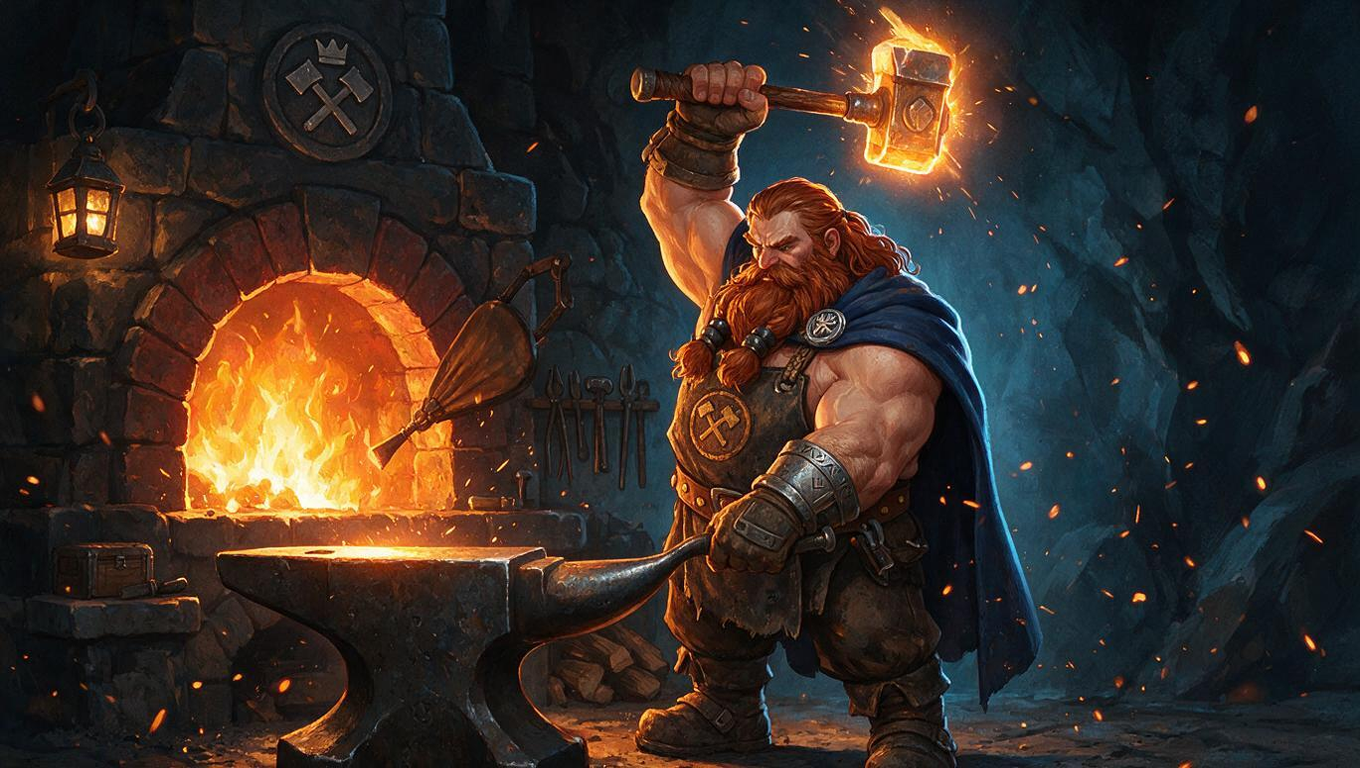
Full-body concept art of a dwarf blacksmith hero for a fantasy RPG, standing at his anvil and raising a glowing hammer overhead, a stone forge burning behind him. Stylised hand-painted game art with chunky proportions and a clear silhouette. Warm firelight from the left and a cool blue rim light from the right, sparks drifting in the air.Seedream plans the image from the brief before it draws, so it needs the relationships between things (who does what, where, lit from which side), and sentences carry those where a list of words does not. That prompt is the one in the clip above.
What works
Sentences, not keywords
Write the prompt as connected sentences. We ran the prompt above against the same words as a list ("dwarf, blacksmith, hero, anvil, glowing hammer, forge, fantasy RPG, concept art, full body...") on the same seed. The sentence prompt raised the hammer overhead, put the forge behind him and split the light warm left, blue right. The keyword list gave a well-drawn dwarf holding the hammer at his side, washed the scene blue, and carved an invented word into the anvil.
Say what the image is for
Start with the deliverable: "Design the title logo for a fantasy mobile game", "Full-body concept art for a fantasy RPG", "An inventory icon for a mobile game". Seedream composes for the stated use.
Light by direction and colour
Write where the light comes from and what colour it is: "warm firelight from the left and a cool blue rim light from the right". Left to itself the model centres the subject and lights it evenly. "Well lit" gives that flat, even glow.
Text in double quotes
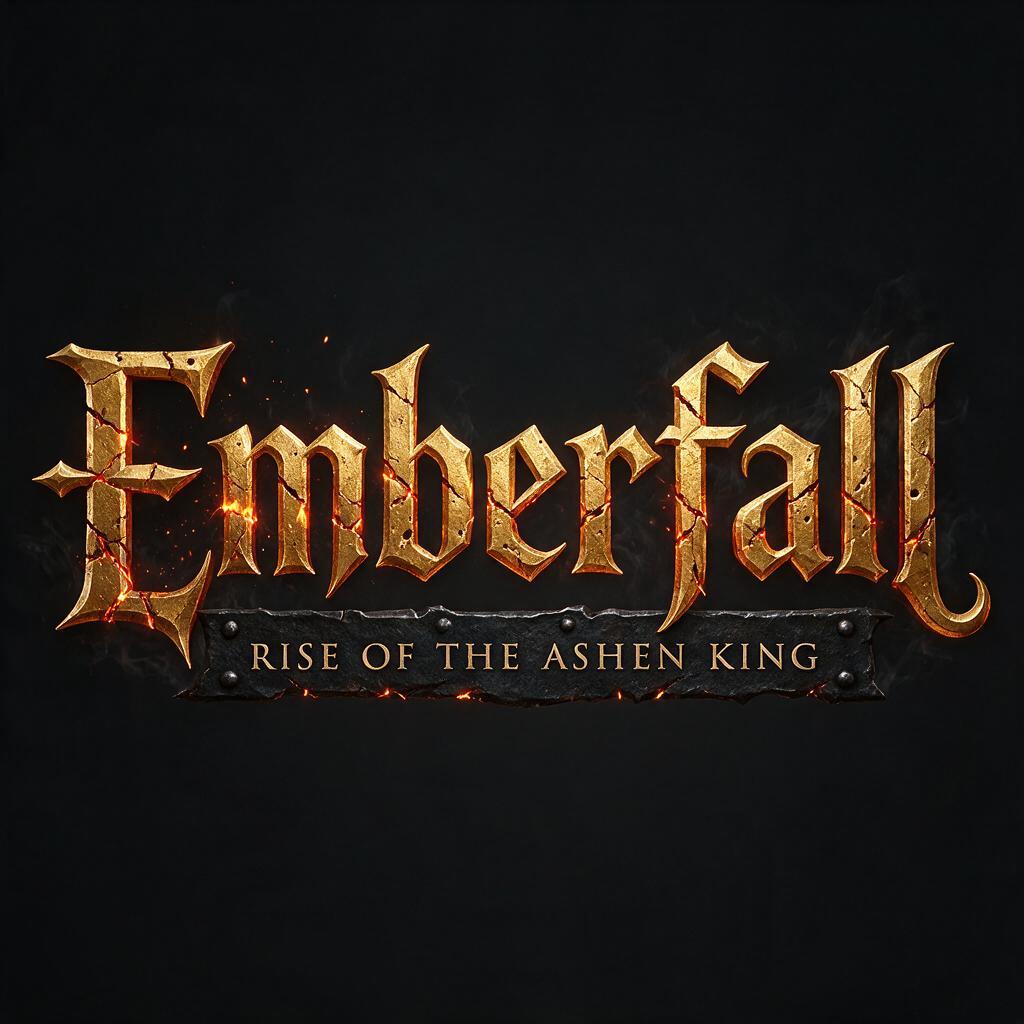
Put every word that must appear in the image in double quotes, and say where it goes: The words "Emberfall" sit large in the centre in carved gold letters, and "Rise of the Ashen King" sits smaller underneath on a dark iron banner. In our test, the same logo without quotes was also spelled correctly, but set the title in capitals; with quotes it kept "Emberfall" exactly as written. Seedream 5.0 Pro and Flash also render text in 14 more languages, including Japanese, Korean, Arabic and Thai.
Layouts: name the regions
For a designed image (a card, a UI screen, an infographic), name the grid, the regions and what goes in each, the way you would hand off a layout.
Name the style precisely
Use a precise style name ("children's book illustration", "hand-painted game art with chunky proportions") or attach a style reference image under Reference image, rather than general words such as "artistic".
What to avoid
Keyword lists
Comma-separated tags lose the action and the relationships between things, and in our test invented text on a prop. Write sentences.
❌ dwarf, blacksmith, hero, anvil, glowing hammer, forge, fantasy RPG, concept art, full body, hand-painted, stylised, chunky proportions, firelight, blue rim light, sparks
✅ Full-body concept art of a dwarf blacksmith hero for a fantasy RPG, standing at his anvil and raising a glowing hammer overhead, a stone forge burning behind him. Stylised hand-painted game art with chunky proportions and a clear silhouette. Warm firelight from the left and a cool blue rim light from the right, sparks drifting in the air.
Filler and stacked adjectives
"Highly detailed, masterpiece, stunning" adds nothing. Concise, precise wording works better than ornate vocabulary.
Very long prompts
Keep it under about 600 words. Past that the information scatters and the model drops details. Split a dense brief into a first image and follow-up edits.
Expecting a negative prompt
There is none. Write exclusions as plain statements in the prompt: "plain dark background, no other text".
Settings that matter
Aspect ratio sets the shape and size: each shape comes at 1K and 2K. Explore at 1K and render the keeper at 2K. Transparent background outputs the subject alone, for sprites and props. Reference image attaches images for a style or a character to follow; refer to them in the prompt as Image 1, Image 2. Seed, under the advanced settings, repeats a result when you change one word at a time.
Prompts to start from
Character concept
Full-body concept art of a dwarf blacksmith hero for a fantasy RPG, standing at his anvil and raising a glowing hammer overhead, a stone forge burning behind him. Stylised hand-painted game art with chunky proportions and a clear silhouette. Warm firelight from the left and a cool blue rim light from the right, sparks drifting in the air.Result |
|---|
 |
Game title logo
Design the title logo for a fantasy mobile game called "Emberfall: Rise of the Ashen King". The words "Emberfall" sit large in the centre in carved gold letters with glowing ember cracks, and "Rise of the Ashen King" sits smaller underneath on a dark iron banner. Plain dark background, no other text.Result |
|---|
 |
Use it in Layer
In a session, open Create image from the side panel.
Click the model name at the top of the panel and choose Seedream 5.0 Pro.
In the prompt box, write what the image is for, the subject and its action, the style and the light, as sentences.
Open Aspect ratio and pick the shape the art ships in, such as 16:9 at 1K.
Click Create image. The cost shows on the button before you click.
When the image lands on the board, click View to open it full-size. Then change one thing in the prompt at a time and run it again.
Learn more
Seedream 5.0 Pro parameters (Layer API docs): every setting the model accepts.
Seedream 4.0-4.5 prompt guide (BytePlus ModelArk): the maker's prompting rules for the family, with recommended and avoided prompts side by side: natural language over keywords, stating what the image is for, and quoting on-image text.
Seedream 5.0 pro / flash tutorial (BytePlus ModelArk): what Seedream 5.0 Pro and Flash add (marked-up editing, layer splitting, text in 14 more languages) and how the two tiers differ.
Image generation tutorial (BytePlus ModelArk): the capability table for every Seedream version, and the prompt length past which details start to drop.
How to use Seedream 5.0 Pro (fal): worked prompts for staging, light and layout, and why a prompt that leaves the palette or the light unsaid gets a generic result.
How to prompt Seedream 5.0 (Replicate): a short list of what Seedream 5.0 responds to, with before and after prompts.